
Best Dictation Software for Windows PC in 2026 (Free & Paid)
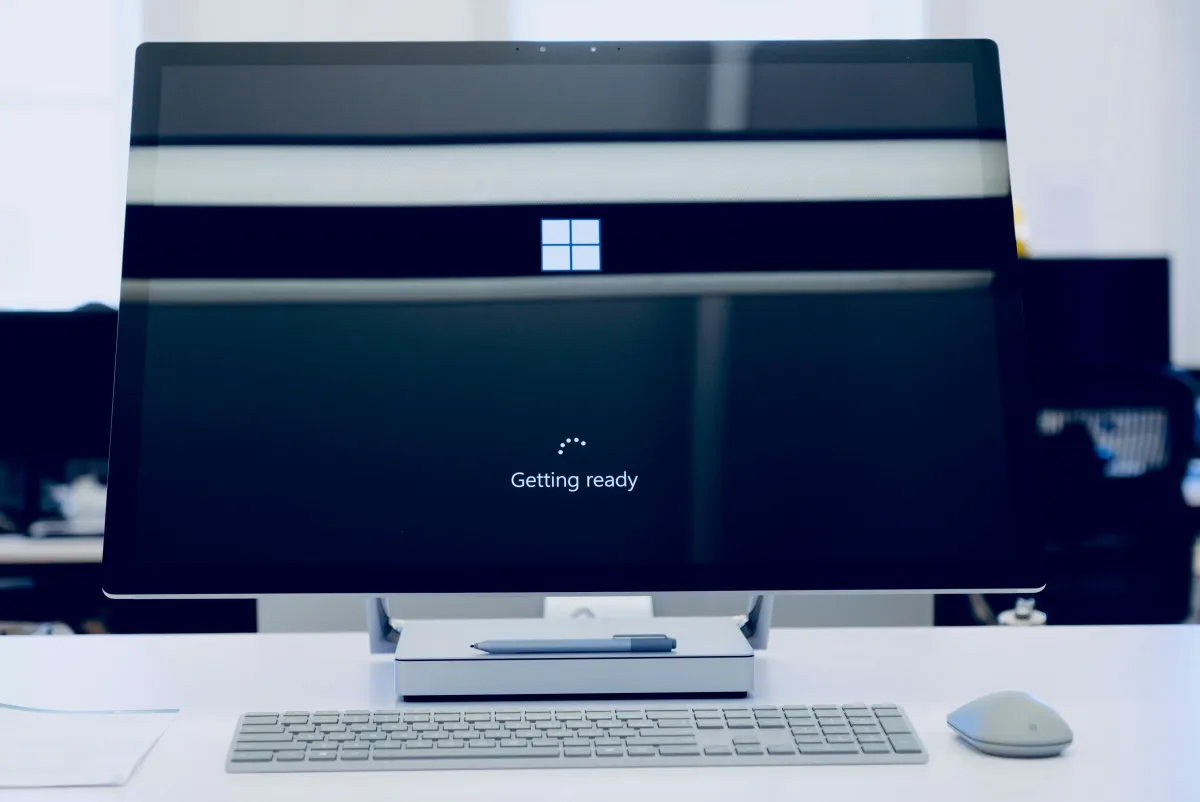
Windows 11 Has Dictation Built In (And You Probably Never Tried It)
I watched a colleague spend 30 minutes researching dictation software for her new Windows laptop. She was comparing Dragon NaturallySpeaking, looking at cloud services, checking reviews.
I asked if she'd tried the dictation already built into Windows 11. She stared at me blankly. "Windows has dictation?"
Press Windows key plus H in any Windows 11 application. A microphone interface appears. Start talking. Words appear. That's it. Free, already installed, works system-wide.
It's not perfect. But it's surprisingly competent for software that costs zero dollars and requires zero setup.
Windows Voice Typing: The Free Baseline
Windows Voice Typing (Windows key plus H) launched with Windows 10 and improved significantly in Windows 11. It uses Microsoft's cloud speech recognition, the same technology powering Azure Speech Services.
Accuracy is 85-90 percent for conversational English. Handles continuous speech, adds punctuation automatically, works in any application. Microsoft lists 53 supported languages for voice typing in Windows 11 as of October 2026.
The catch: requires internet connection. It processes audio in Microsoft's cloud. If you're offline or have privacy concerns about cloud processing, Windows Voice Typing won't work.
For quick emails, documents, and casual dictation, Windows Voice Typing is surprisingly good. I use it for first drafts that I'll edit anyway. The fact that it's free and always available makes it the baseline to beat.
How to Use Voice Typing in Windows 11
Steps checked against Microsoft's voice typing support page in October 2026. You need an internet connection, a working microphone, and your cursor in a text box.
- Click into any text field: a Word document, an email, a browser form, a chat box.
- Press Windows key plus H. On a touch keyboard, tap the microphone key next to the spacebar.
- The voice typing bar appears and starts listening. Speak normally.
- To stop, say "stop listening" or click the microphone button on the bar. Press Windows key plus H again to resume.
Two settings are worth changing the first time. Click the gear icon on the voice typing bar and turn on Automatic punctuation, so you don't have to say every comma. If you want the bar to appear whenever you click into a text field, turn on the Voice typing launcher there as well.
To dictate in another language, add it under Settings, Time and language, Language and region, then switch with Windows key plus Spacebar before you start.
Voice typing commands worth knowing
| Say this | What happens |
|---|---|
| "stop listening" | Pauses voice typing |
| "delete that" | Removes the last thing you dictated |
| "select that" | Selects the last thing you dictated |
| "period", "comma", "question mark" | Inserts the punctuation mark |
Microsoft's support page has the full command list for each language.
If Windows key plus H does nothing, check that the microphone is allowed under Settings, Privacy and security, Microphone, and that you're online. Voice typing does not work without a connection.
Dragon NaturallySpeaking: Legacy Technology That Still Works
Dragon NaturallySpeaking is now sold as Dragon Professional v16, which costs about 699 dollars at US retail and runs only on Windows. There hasn't been a new major desktop version since v16 in February 2023, and Microsoft bought Nuance in 2022. It's legacy technology in maintenance mode.
Dragon runs locally on your Windows PC. No internet required, your audio never leaves your computer. For confidential work or offline scenarios, this matters.
The downside is training time. Dragon requires 20-30 minutes of initial setup reading text aloud, then 1-2 weeks of corrections while it learns your voice. Most people never finish that training. They try Dragon, get 75 percent accuracy, decide dictation doesn't work, and quit.
If you're willing to invest the training time, Dragon eventually hits 95-97 percent accuracy. But you have to commit weeks to get there.
AI Dictation: Better Accuracy Without Training
The modern option for Windows users is AI-powered dictation. These services use neural networks trained on millions of hours of speech, not rules-based systems like Dragon.
Dictation Daddy (under 100 dollars per year, I have obvious bias - I built it) is available on Windows, Mac, iPhone, Android, and Chrome extension. The apps don't sync between devices, but AI-powered transcription achieves higher accuracy than Dragon without any training required.
The AI auto-corrects punctuation, handles false starts naturally, and adapts to technical terminology immediately. Accuracy is 96-98 percent from day one with zero training. That's higher than Dragon's maximum accuracy, and you're productive immediately instead of spending weeks training.
For enterprises needing SOC2 or HIPAA compliance, there's a dedicated plan.
Otter.ai (17 dollars per month) is excellent for meetings and conversations. It identifies speakers, generates summaries, extracts action items. Less good for solo document dictation.
When Dragon Still Makes Sense on Windows
Despite being legacy technology, Dragon makes sense for specific Windows users:
If you need offline dictation. Rural areas, secure facilities, anywhere with unreliable internet.
If you handle confidential information that can't be cloud-processed. Medical records, legal documents, classified business information.
If you need extensive computer control via voice. Dragon's macro system lets you control your entire Windows PC with voice commands. Most alternatives focus on transcription only.
Those are legitimate use cases but increasingly niche. For most Windows users, AI dictation provides higher accuracy with zero training time.
The Microphone Question Everyone Ignores
Dictation accuracy depends heavily on your microphone. Windows Voice Typing and AI services are forgiving because they're trained on audio from various microphones. Dragon is pickier.
Your laptop's built-in microphone works but isn't optimal. Background noise, distance from mouth, and poor quality all hurt accuracy.
A 30-50 dollar USB microphone (Blue Snowball, Audio-Technica ATR2100) dramatically improves accuracy. The difference is 10-15 percent better transcription.
Before blaming dictation software for poor accuracy, try a better microphone. It's the cheapest upgrade that makes the biggest difference.
What I Actually Use on Windows
I use Dictation Daddy for everything on my Windows desktop - emails, documents, articles, notes, all writing tasks.
The 96-98 percent accuracy with zero training is worth 100 dollars per year. Higher accuracy than Dragon, lower cost, no training required. The AI handles technical terminology immediately.
I used Dragon Professional from 2015 to 2024. It was accurate after months of training. But when I upgraded computers in 2024, I couldn't face retraining Dragon from scratch. That's when I switched to Dictation Daddy.
The consistency matters. Same high accuracy for quick emails and long professional documents. I don't switch between tools. Dictation Daddy handles everything.
The Uncomfortable Truth About "Best"
There's no objectively "best" Windows dictation software. There's "best for your specific situation."
Best for ease of use: Windows Voice Typing (free, no setup).
Best for accuracy and convenience: AI dictation like Dictation Daddy (higher accuracy than Dragon, zero training, lower cost).
Best for privacy: Dragon (local processing, no cloud).
Best for offline use: Dragon (works without internet).
"Best" depends on what you prioritize: accuracy, convenience, cost, privacy, or features. Figure out your priorities, then choose software that matches them.
Last updated: January 13, 2026, verified with current Windows Voice Typing features, Dragon pricing, and cloud service offerings
Ready to try it?
Turn your voice into polished text
Free 7-day trial. Works in every app. No credit card required.