
Your microphone stopped working
You press your dictation key and nothing happens. No text, no error, no recording. On Windows this is almost always one of two things, and both take about a minute to fix. Neither one means your microphone is broken.
Start here: is another app holding the microphone?
This is the cause roughly nine times out of ten. Windows lets one app take exclusive control of a recording device, and while it does, every other app is locked out. Zoom, Teams, Discord and OBS all do this, and they keep holding the device after you close the window if they are still running in the system tray.
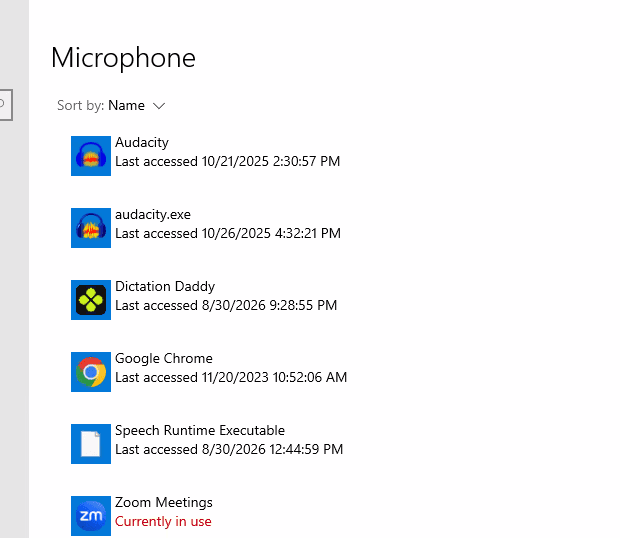
Open Settings, then Privacy, then Microphone, and scroll to the app list. Anything holding your microphone right now is marked in red.
The fix
Quit the app that is holding it
Closing the window is not enough. Right-click its icon in the system tray, next to the clock, and choose Quit or Exit. Zoom in particular keeps the microphone open while it sits in the tray.
Try dictating again
If the text appears, you are done. The app that was holding the device has released it.
If it still fails, turn off exclusive control
Right-click the speaker icon, choose Sounds, open the Recording tab, select your microphone, click Properties, then the Advanced tab. Untick 'Allow applications to take exclusive control of this device' and click OK. This stops any single app from locking everyone else out in future.
Second cause: your antivirus has sandboxed the app
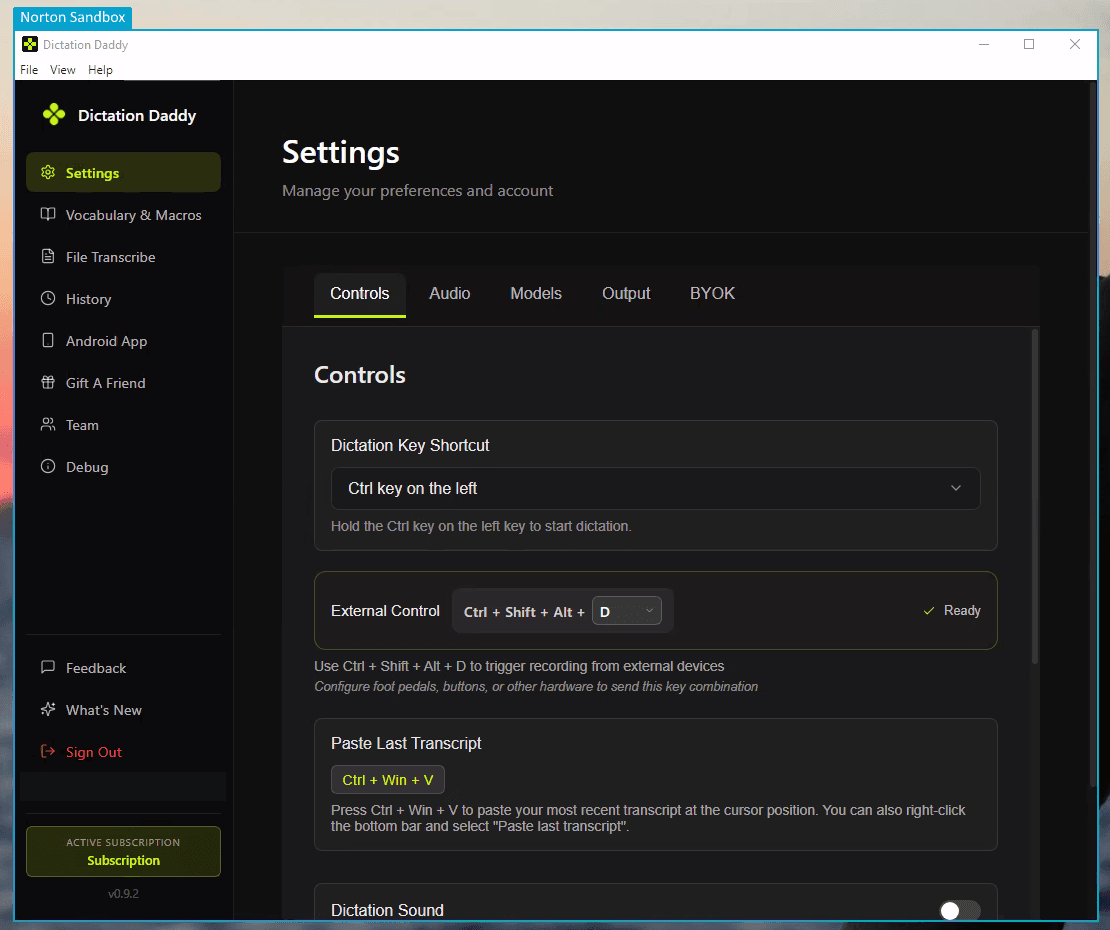
Some antivirus products run unfamiliar programs inside a sandbox, an isolated container that blocks access to hardware including your microphone. Norton does this, and it does it quietly. The give-away is a coloured border drawn around the window and a label in the top corner.
Getting out of the sandbox
Check for the border
Open Dictation Daddy and look at the edge of the window. A coloured frame with a product name in the corner means an antivirus is sandboxing it. Without a frame, this is not your problem, and the microphone cause above is the one to work through.
Add the install folder to your exclusions
Every antivirus calls this something slightly different. Find yours below for the exact menu path.
Check Norton's Sandbox panel
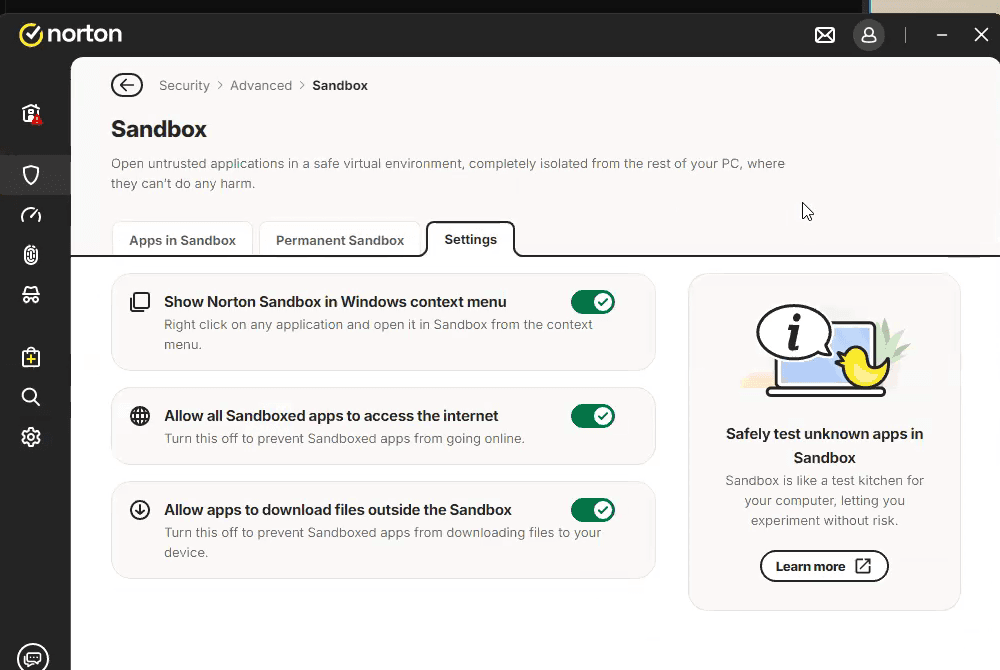
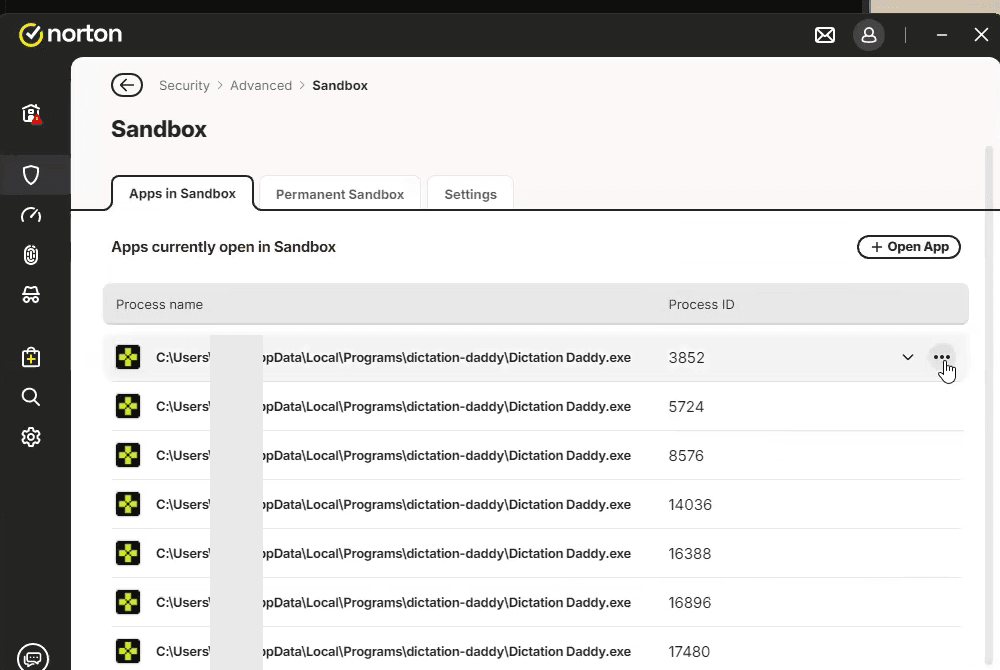
In Norton, go to Security, then Advanced, then Sandbox. The Apps in Sandbox tab lists everything Norton is running sandboxed right now. Also open the Permanent Sandbox tab: anything listed there gets sandboxed on every single launch, so remove Dictation Daddy if you find it.
Restart the app normally
Close Dictation Daddy from the system tray, not just the window, then open it again from the Start menu. Norton adds an Open in Sandbox item to the Windows right-click menu, so if you have been launching the app that way, launch it normally instead.
The folder to exclude
On Windows, Dictation Daddy installs to your own user folder:
C:\Users\<your username>\AppData\Local\Programs\dictation-daddyExclude the whole dictation-daddy folder, not just the .exe. The app ships helper programs alongside it that your antivirus will otherwise keep blocking on their own.
Exact steps for your antivirus
Norton+
- Open Norton and click Security in the left pane. On the Scans tile, click Open, then open the Exclusions tab.
- Click Add, browse to the Dictation Daddy install folder, and click OK.
- If your Norton looks different, the older layout puts this under Settings, then Antivirus, then the Scans and Risks tab. That version has two separate lists: Items to Exclude from Scans, and Items to Exclude from Auto-Protect, Script Control, SONAR and Download Intelligence Detection. Add the folder to both.
Adding the folder to the scan list alone is the usual reason this does not work. The second list is the one that controls behaviour-based blocking, which is what sandboxes the app.
Windows Security (Microsoft Defender)+
- Open Windows Security and click Virus & threat protection.
- Under Virus & threat protection settings, click Manage settings.
- Scroll to Exclusions and click Add or remove exclusions.
- Click Add an exclusion, choose Folder, and select the Dictation Daddy install folder.
McAfee, Bitdefender, Avast, AVG, Kaspersky and others+
- McAfee: open Real-Time Scanning settings and add the folder under Excluded Files.
- Bitdefender: Protection, then Antivirus, then Settings, then Manage Exceptions.
- Avast and AVG: Menu, then Settings, then General, then Exceptions.
- Kaspersky: Settings, then Security settings, then the exclusions list.
Vendors rename these screens between versions. If the wording does not match, search your antivirus help for exclusion, exception, allow list or trusted application. They all mean the same thing.
Dictation Daddy is signed with a Microsoft-issued certificate, and every file we ship carries that signature. Antivirus products still sandbox new releases occasionally, because a build that has only been out for a few days is unfamiliar to them regardless of who signed it. Reporting it to your antivirus vendor as a false positive helps, both for you and for everyone else on that product.
If your speakers went quiet too
Dictation Daddy mutes your system audio while it listens, so a notification sound never lands in the middle of your dictation, and unmutes as soon as the dictation ends. If a dictation fails to start, the app can leave your system muted, which looks exactly like your speakers breaking.
Check the volume icon in the taskbar for a mute cross and click to unmute. This is our bug, not yours, and we are fixing it so that a failed start always restores your audio.
Other things worth checking
The wrong microphone is selected
Open Settings, then Audio, in Dictation Daddy. If you have a webcam or a headset, Windows may have made it the default while the microphone you actually speak into sits unused. Pick the device by name rather than leaving it on Auto-detect.
Microphone access is switched off for desktop apps
In Windows Settings, under Privacy and then Microphone, make sure both 'Allow apps to access your microphone' and 'Allow desktop apps to access your microphone' are on. The second one is separate and easy to miss.
The microphone is muted in hardware
Many headsets have a mute button on the cable or the earcup, and some keyboards have a microphone mute key with its own indicator light. Windows reports these as a working device that records silence.
Nothing above applies
Send us a bug report. In Dictation Daddy, open Feedback in the sidebar and use Send a bug report. Your logs are attached automatically, which usually gives us the exact error without another round of questions.
Common questions
Why does my microphone work in Zoom but not in Dictation Daddy?
Zoom is holding the microphone. On Windows, an app can take exclusive control of a recording device, which locks every other app out until it releases. Quit Zoom completely, including the icon in the system tray, then try dictating again.
How do I find out which app is using my microphone on Windows?
Open Settings, then Privacy, then Microphone, and scroll to the list of apps. Any app currently holding the device is labelled 'Currently in use' in red. That app is the one to close.
Why did my speakers stop working at the same time as my microphone?
Dictation Daddy mutes your system audio while it listens so notification sounds are not recorded, and unmutes when the dictation ends. If a dictation fails to start, older versions could leave the system muted. Check the Windows volume icon for a mute cross and unmute it.
Why does Dictation Daddy have a coloured border and a Norton Sandbox label?
Norton has placed the app in its sandbox, which blocks it from reaching your microphone properly. Open Norton, go to Security, then Advanced, then Sandbox to confirm, then add Dictation Daddy to Norton's exclusions and launch it normally. The app cannot record reliably from inside a sandbox.
Does Dictation Daddy need exclusive access to my microphone?
No. Dictation Daddy shares the microphone and releases it as soon as a dictation ends. It only fails when another app has taken exclusive control of the device.
Once it is working
A microphone that another app has locked, or an antivirus that quietly boxed the app in, has nothing to do with how well the dictation works. Here is what it is like on the other side of that.
“It does all the punctuation for you. I can use it right away without having to edit it. I love it, I use it every day.”
John
Lawyer with his own practice, 30+ years of dictation
Read full transcript+
Transcript
I'm a lawyer and I have my own law practice. I've been using dictation software for over 30 years. It started when I was working for a law firm and was handed a cassette recorder, and I really hated it. So I looked for something better and bought into Dragon NaturallySpeaking, version 2.0 or 3.0 back then.
It sort of worked. You had to make a lot of corrections. It got better over time, but even the most recent iteration requires a lot of computer resources and still a fair amount of correction. Even though it says 99 percent accurate, if you dictate a hundred words and one is inaccurate, you have to go back and correct it. Corrections and training take a lot of time away from what you are trying to do.
With Dictation Daddy you don't have to do that. It does all the punctuation for you and makes a really nice piece of dictation that I can use right away without having to edit it.
After trying it out for a couple of days, I was willing to give this a five year shot. I found them to be very responsive, and I love it. I use it every day.
Still stuck?
Email the founder directly. I read and respond to every message.