
How to Turn On Voice Typing on Android (Pixel and Samsung)
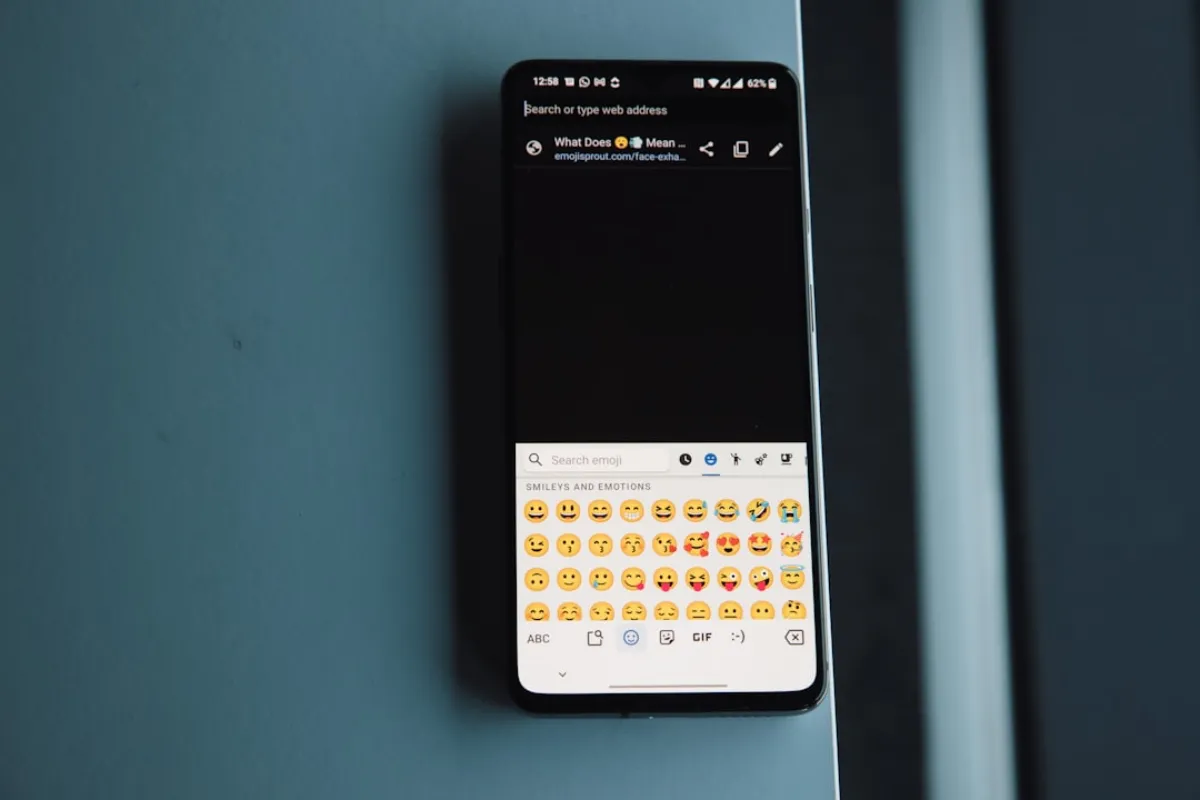
To turn on voice typing on Android, tap any text field so the keyboard opens, then tap the microphone icon on the keyboard and start speaking. On Pixel and most Android phones that keyboard is Gboard. On Samsung Galaxy phones it is Samsung Keyboard, and the microphone sits in the keyboard toolbar. If you don't see a microphone, the fixes are below.
How to turn on voice typing with Gboard (Pixel and most Android phones)
Steps checked against Google's Gboard help in October 2026. Voice typing in Gboard needs Android 7.0 or later.
- Open any app you can type in, such as Messages, Gmail or Keep.
- Tap a text field so the keyboard appears.
- Tap the microphone icon at the top of the keyboard.
- When you see "Speak now", start talking.
- Tap the microphone again to stop.
If the microphone icon isn't there, open Gboard's settings (the gear icon on the keyboard), tap Voice typing, and turn on Use voice typing. The first time you use it, Android asks for microphone permission. Allow it.
Some Pixel phones use Advanced voice typing instead, which is switched on from the same Voice typing screen.
How to turn on voice typing on Samsung Galaxy
Steps from Samsung's US support page for Galaxy keyboard settings, checked October 2026.
- Open Settings, then General management, then Keyboard list and default.
- Turn on Google Voice Typing if you want Google's engine available.
- To use Samsung's own engine, go to Settings, then General management, then Samsung Keyboard settings, then Voice input, and select Samsung voice input.
- Open any app, tap a text field, and tap the microphone icon on the keyboard toolbar.
- The first time, agree to the terms and allow the microphone permission.
Microphone icon missing on the keyboard?
On Samsung Keyboard, tap the three dots on the keyboard toolbar to expand it, find the microphone, then touch and hold it and drag it onto the toolbar.
On Gboard, check that Use voice typing is on in Gboard's Voice typing settings, and that Gboard has microphone permission under Settings, Apps, Gboard, Permissions.
On either keyboard, some text fields disable voice input, password fields in particular. Test in a notes app before assuming it's broken.
Punctuation commands that work on Android
Gboard understands these spoken commands in supported languages: "period", "comma", "question mark", "exclamation point", "new line" and "new paragraph". Google notes that punctuation isn't available in every language.
The Android Feature Everyone Has and Nobody Uses
I watched someone at a coffee shop carefully typing a long email on their Android phone. Two thumbs moving methodically across the tiny keyboard. Five minutes of concentrated effort.
Their phone has voice-to-text built in. Every text field, every app. Tap the microphone icon on the keyboard, speak, tap again to stop. Takes 30 seconds instead of 5 minutes.
But most Android users never try it. They assume it won't work well or don't know it exists.
What Android Already Includes
Google Voice Typing is built into every Android phone. It's in the keyboard (Gboard or Samsung Keyboard). No app to download, no setup required.
Tap any text field. The keyboard appears. Tap the microphone icon (usually bottom row, near the space bar). Start talking. Words appear.
Accuracy is around 85-90 percent for conversational English. Free, requires internet connection, works across all apps.
For quick messages, texts, and casual use, Google Voice Typing is surprisingly good for something that costs nothing and requires nothing. If you want to see how it compares to free options on iPhone, Mac, and Windows, see free speech-to-text apps compared across all platforms.
When People Download Voice-to-Text Apps
Despite Android having built-in voice typing, people download third-party apps for specific reasons:
Higher accuracy. Built-in Voice Typing at 85-90 percent isn't enough for professional documents. They want 95-98 percent accuracy.
Better features. Longer dictation sessions without timeout, automatic punctuation, handling technical terminology.
Cross-platform use. They want the same dictation app on Android, iPhone, Windows, and Mac.
Professional needs. Medical documentation, legal work, technical writing require specialized features.
The built-in option works for casual use. Professional use needs better accuracy and features.
The Voice-to-Text Apps People Actually Use
Otter.ai. Excellent for meetings and conversations. Identifies speakers, generates summaries. Less useful for solo dictation. Free tier available, 17 dollars per month for premium.
Dictation Daddy. I use this for everything on my Android - texts, emails, documents, notes, all writing tasks. I have obvious bias (I built it), but the differences matter:
96-98 percent accuracy without any training required. Higher than Dragon Anywhere reached after its training, significantly higher than Google Voice Typing.
Automatic formatting. Punctuation, new lines, and paragraphs added intelligently without voice commands. No more saying "period comma new paragraph" constantly.
You can still use formatting commands like "new line" or "comma" when needed, but the AI handles most formatting automatically. False starts and self-corrections are handled naturally.
Technical terminology works immediately. Medical terms, legal jargon, industry vocabulary all work from day one without training. No need to add words manually or correct repeatedly.
Available on Android, iPhone, Mac, Windows, and Chrome extension. The apps don't sync between devices, but I have consistent dictation everywhere. Under 100 dollars per year. For enterprises needing SOC2 or HIPAA compliance, there's a dedicated plan.
Compared to what Dragon Anywhere charged before it was withdrawn (150 dollars per year for mobile-only, with training requirements), Dictation Daddy provides higher accuracy at lower cost for all platforms.
Dragon Anywhere. This was Nuance's professional mobile dictation app, a subscription of 150 dollars a year that needed voice training. Its Google Play listing says that as of July 1, 2026 it is no longer available for sale and existing subscriptions can't be renewed. The Dragon Anywhere guide covers what its users can switch to.
The Accuracy Comparison That Matters
Google Voice Typing (built-in): 85-90 percent accuracy. That means 10-15 errors per 100 words. For a 500-word document: 50-75 corrections needed.
Dragon Anywhere (no longer sold): 95-97 percent accuracy after training. That means 3-5 errors per 100 words. For a 500-word document: 15-25 corrections needed.
Dictation Daddy: 96-98 percent accuracy immediately. That means 2-4 errors per 100 words. For a 500-word document: 10-20 corrections needed.
Higher accuracy, zero training required, works across all platforms.
When Built-In Voice Typing Is Enough
Google Voice Typing makes sense when:
You dictate infrequently. Quick texts and messages occasionally.
Casual use only. Not for professional documents.
You're okay with 85-90 percent accuracy and fixing 10-15 errors per 100 words.
You don't need specialized vocabulary. Medical, legal, technical terms reduce accuracy significantly.
Free is the right price point for your usage level.
For these use cases, the built-in option is perfectly adequate.
When You Need a Better App
Download a voice-to-text app when:
You dictate regularly. Daily professional use where accuracy matters.
You need higher accuracy. 85-90 percent isn't enough, you want 96-98 percent.
You use specialized terminology. Medical, legal, technical vocabulary that built-in struggles with.
You want consistency across devices. Same app and accuracy on Android, iPhone, computer.
You're willing to pay under 100 dollars per year for significantly better accuracy.
The time you save on corrections more than pays for better accuracy.
What Works for Different Android Use Cases
For casual texts and messages: Built-in Google Voice Typing. Free, adequate accuracy, always available.
For professional documents and regular dictation: AI voice-to-text like Dictation Daddy. Higher accuracy (96-98 percent), automatic formatting, immediate handling of technical terms.
For meetings and multi-speaker conversations: Otter.ai. Speaker identification and summaries. Not optimized for solo dictation.
For users needing offline local processing: This is difficult on Android. Most voice-to-text requires internet. Consider desktop Dragon for offline needs.
Match your tool to your needs. Don't pay for features you won't use, but don't accept lower accuracy when better options exist at reasonable cost.
The Privacy Consideration
Built-in Google Voice Typing sends audio to Google servers. Google's privacy policy says they may use audio to improve speech recognition. For casual use, most people accept this trade-off.
Third-party apps also use cloud processing. Dragon Anywhere processed audio in the Nuance/Microsoft cloud. Otter.ai stores recordings for review. Dictation Daddy processes audio for transcription.
For enterprises needing enhanced security, look for apps offering business agreements and compliance certifications. Dictation Daddy offers enterprise plans with SOC2 and HIPAA compliance options.
If privacy is paramount, you need local offline processing, which is difficult on mobile devices. Consider desktop solutions for highly confidential work.
The Uncomfortable Reality
Your Android phone has voice-to-text built in that most people never try seriously. They type slowly on tiny keyboards instead of speaking naturally.
Built-in Voice Typing at 85-90 percent accuracy is good enough for casual use. For professional work where you dictate regularly, AI voice-to-text at 96-98 percent accuracy saves significant time on corrections.
The difference between 85-90 percent and 96-98 percent accuracy compounds quickly when you dictate daily. Better accuracy means less editing time, which justifies reasonable cost for users who dictate regularly.
Try the built-in option first. Use it for a week. If you find yourself using it frequently and spending time correcting errors, that's when better accuracy becomes worth paying for.
Last updated: January 15, 2026, verified with current Android voice typing options and accuracy
Ready to try it?
Turn your voice into polished text
Free 7-day trial. Works in every app. No credit card required.