
Google Docs Voice Typing: How to Use It, Commands, Limits
To use voice typing in Google Docs, open a document in Chrome, Edge or Safari on a computer, click Tools, then Voice typing, and click the microphone. Say "period", "comma" or "new paragraph" out loud, because punctuation is spoken.
The keyboard shortcut is Ctrl+Shift+S on Windows and Chromebooks, or ⌘+Shift+S on a Mac. Voice commands such as "select paragraph" and "bold" work only when your Google account and the document are both set to English. Google's steps are for a computer. On a phone, you dictate with the microphone on your keyboard instead.
How to start voice typing in Google Docs
These are the steps from Google's help page Type & edit with your voice, as it read on 10 November 2026:
- Make sure your computer's microphone is on and working. Google points you to System Settings on a Mac or the Control Panel on a PC.
- Open a document in Google Docs in a supported browser (the latest Chrome, Edge or Safari).
- Click Tools, then Voice typing. A microphone box appears.
- When you're ready, click the microphone and speak "clearly and at a normal volume and pace", in Google's words.
- When you're done, click the microphone again.
The box has a language menu at the top. Google's own News Initiative lesson on voice typing says to pick your language there before you click the microphone, and that the microphone turns black while voice typing is paused. You can drag the box out of the way by its top edge.
The first time, your browser asks whether docs.google.com may use the microphone. In Chrome the choices are Allow while visiting the site, Allow this time and Never allow, according to Chrome's camera and microphone help. Pick one of the first two. If you pick Never allow, voice typing can't hear you until you change it, which the fixes section below covers.
To start without the menu, press Ctrl+Shift+S (Windows and ChromeOS) or ⌘+Shift+S (Mac). Google's Docs keyboard shortcuts list labels this shortcut "available in Chrome browsers", so if it does nothing in Safari or Edge, use the Tools menu.
You don't have to stop to fix a mistake. Google says you can move the cursor to the error and correct it with the keyboard "without turning off the microphone", then put the cursor back where you want to carry on. Words underlined in gray have alternatives: right-click one to see what else Docs thinks you said.
To stop by voice, say "Stop listening". To carry on, say "Resume", which moves the cursor to the end of the paragraph and starts typing again, or "Resume with" followed by a word or phrase to continue after it.
Punctuation: say it, and don't pause before it
Google's help page tells you to add punctuation by saying it. The words it lists are "period", "comma", "exclamation point", "question mark", "new line" and "new paragraph". Say the word where the mark should go, and Docs types the mark instead of the word. There's no word on the list for quotation marks, colons, hyphens or brackets, so type those.
To type a short two-paragraph note, you'd say: "Thanks for the notes comma Sam period new paragraph Can we talk on Friday question mark".
The timing matters, and it's the opposite of what you do for commands. For editing commands such as "select paragraph", Google says to "pause before and after each command." For punctuation, don't pause first. CALL Scotland's guide to Google voice typing warns that pausing before the punctuation word "may lead to Voice Typing turning your punctuation into words", so "This is a sentence." comes out as "This is a sentence full stop". Run the punctuation word into the end of the sentence.
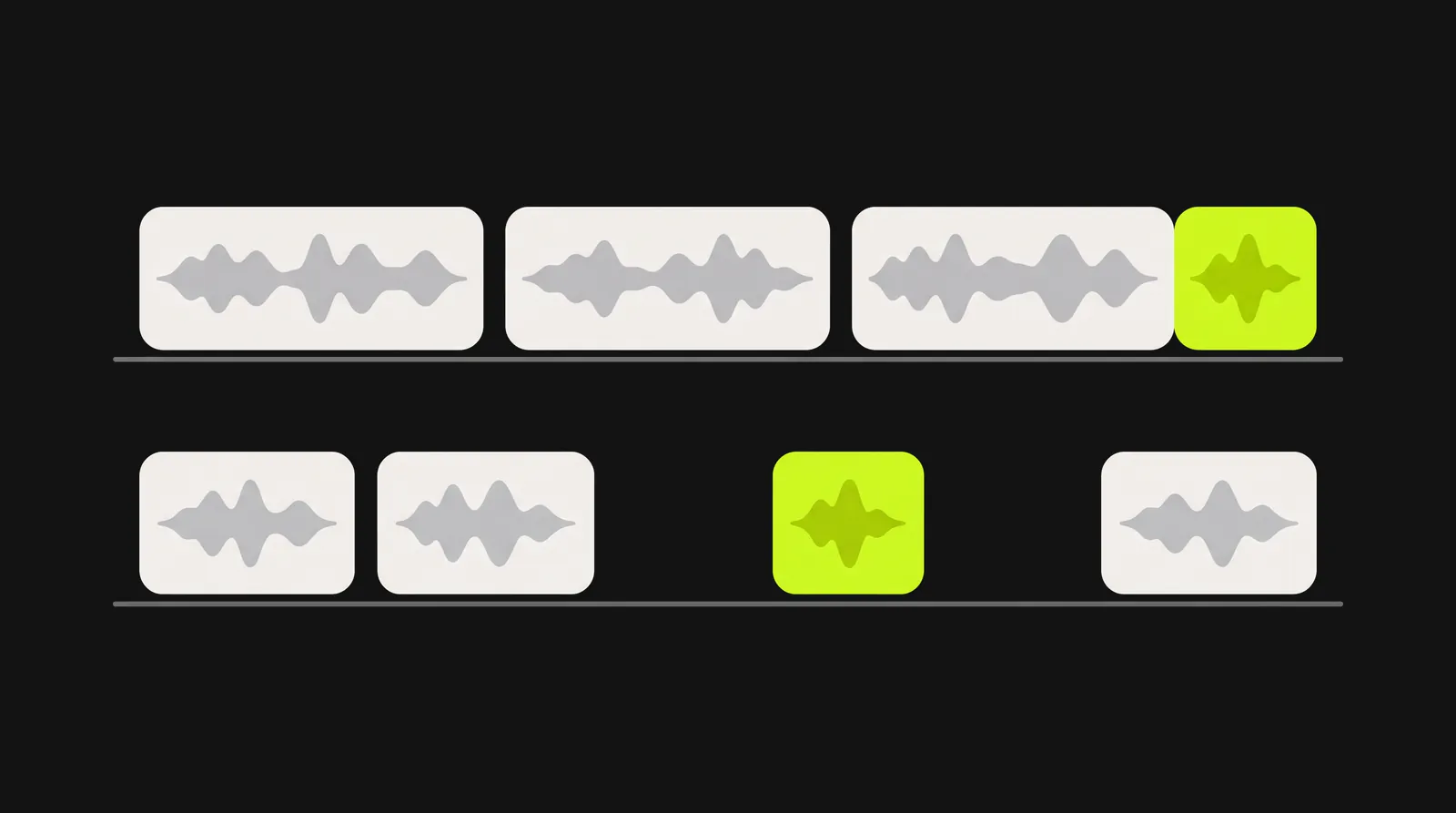
Say punctuation straight after the last word, with no pause. Pause before and after a command such as "select paragraph".
Voice commands worth learning
Before you try a command, check the language rule. Google says: "Voice commands are available only in English. The account language and document language must both be English." If either is set to another language, the commands won't work.
- Your account language is at myaccount.google.com/language. Google says to close and reopen your browser after changing it.
- The document's language is under File, then Language, according to Google's page on writing in a different language.
Google's full list runs to more than 130 commands. Here is a shorter set for everyday writing, taken from it:
| What you want | Say |
|---|---|
| Select text | "Select [word or phrase]", "Select paragraph", "Select line", "Select all", "Select last word" |
| Clear a selection | "Deselect" or "Select none" |
| Format | "Bold", "Italics", "Underline", "Strikethrough", "Apply heading 1" (up to 6), "Apply normal text" |
| Change case | "Uppercase", "Lowercase", "Title case" |
| Make a list | "Create bulleted list", "Create numbered list" |
| Delete | "Delete" (removes the word before the cursor), "Delete last word", "Delete [word or phrase]" |
| Insert | "Insert comment" then the comment, "Insert link" then the URL, "Insert page break", "Insert table 3 rows by 4 columns" |
| Move around | "Go to end of paragraph", "Go to start of line", "Go to next heading", "Scroll down" |
| Copy and paste | "Copy", "Cut", "Paste" |
| Stop and restart | "Stop listening", "Resume", "Resume with [word or phrase]" |
| See every command | "Voice commands list" |
Google's troubleshooting section adds a few habits. Speak slowly and clearly. Pause before and after each command. Watch the bubble by the microphone, which shows the last command Docs heard, and if it heard the wrong thing, "you can simply say "Undo.""
You may see a command's words appear in the document for a moment before it runs. Google warns about this: say "select all" and the words "select all" show up before the text is selected.
Which browsers work, and why guides disagree
Google's help page lists the latest versions of Chrome, Edge and Safari, and says why the browser matters: "When you turn on voice typing or captions, your web browser controls the speech-to-text service. It determines how your speech is processed and then sends the text to Google Docs or Google Slides." In practice:
- Chrome is the safe choice. Every copy of Google's page we checked lists it, and it's the only browser the shortcut is documented for.
- Edge and Safari are on the current list. If something misbehaves in one of them, open the same document in Chrome before trying anything else.
- Firefox isn't on Google's list.
- Brave is built on Chromium, like Chrome, but voice typing fails there. A Brave user reported in its community forum that "the microphone is on but nothing is written after speech", while the same document worked in Chrome. Brave Software staff explained on its GitHub tracker that speech recognition in Brave "relies on a Speech API key that we would need to create and pay for on a per-use basis", and wrote in October 2025 that "this should only be an issue on Desktop versions of Brave."
- Other browsers (Opera, Arc, Vivaldi) aren't on Google's list, so Google doesn't promise they work.
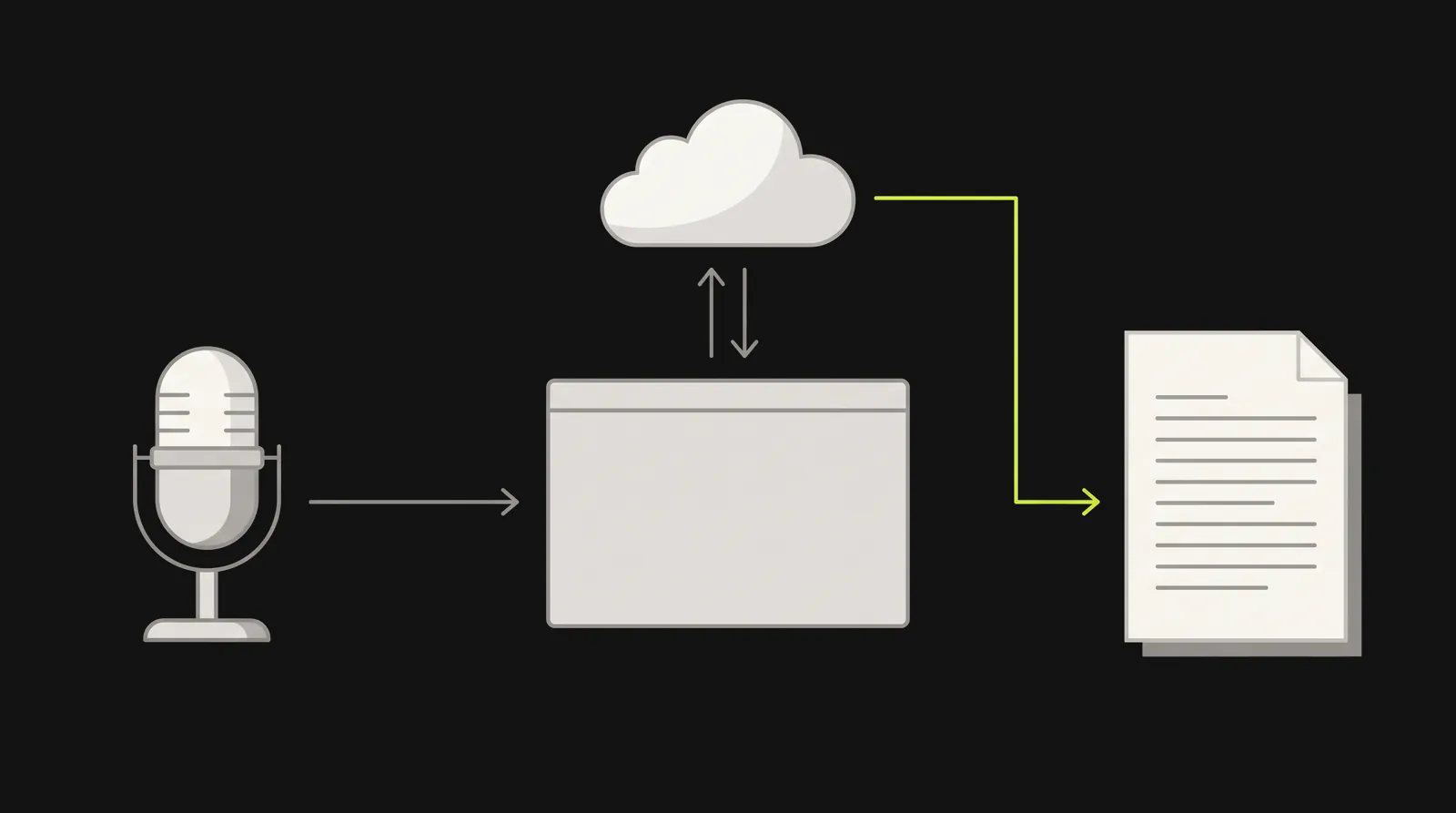
Your web browser does the speech to text and sends the text to Google Docs, so the browser decides whether voice typing works.
If you'd rather stay in Firefox or Brave, your computer's own dictation types into any app, Google Docs included. On Windows, press Windows key+H, which needs an internet connection, per Microsoft's voice typing guide. On a Mac, Apple's Dictation lets you "speak to enter text anywhere you can type it". Neither uses Google's voice commands.
If you've read that voice typing is "Chrome only", or that it works in Firefox, you may have been reading an older version of Google's own page. We pulled archived copies of it from the Internet Archive's Wayback Machine, from July 2019 to October 2026, and it has said 3 different things:
| Archived copies of Google's page | What it said about browsers |
|---|---|
| July 2019 to 12 January 2023 | "This feature is only available in Chrome browsers." |
| 13 January 2023 to 18 May 2024 | "The latest versions of Chrome, Firefox, Edge, and Safari browsers", while the steps still said "Open a document in Google Docs with a Chrome browser" |
| 20 May 2024 to today | Chrome, Edge and Safari. The steps changed to "in a supported browser" by September 2024 |
So Firefox was on the list for about 16 months, until May 2024. Not every Google page has caught up since: the shortcut list still labels Ctrl+Shift+S "available in Chrome browsers", and Google Workspace's Tips to edit and collaborate on files heads its voice typing section "Chrome Browser only, microphones required", right above steps that say "in a supported browser".
Which languages voice typing supports
Google's help page lists 119 languages and accents for voice typing. Fold the regional versions together and you get 62 languages, with the most variants for Spanish (21, from Argentina to Venezuela), Arabic (15) and English (13, including India, Nigeria, the Philippines and the UK). The archived copy from July 2019 has the same 119 entries.
What each language gets is less clear than it used to be:
- Dictation works in every language on the list.
- Spoken punctuation "might not be available in every language", Google says now. As late as October 2020 its page was specific: "Punctuation works in German, English, Spanish, French, Italian, and Russian," and in Spanish, "punctuation at the beginning of the sentence, like ¡ or ¿, must be typed." Google's News Initiative lesson names those 6 plus Portuguese.
- Voice commands work only in English, and only when both the account and the document are set to English.
If you write in Spanish, for example, you can dictate the text and, going by Google's older list, its punctuation, but you'll select, format and fix it with the mouse and keyboard.
Why voice typing stops listening
Users have reported this in Google's Docs help forum for years, and Google's help page doesn't mention it. Here is what users and Google's volunteer Product Experts (who aren't Google employees) report:
- It stops after a silence. One laptop user reported 15 seconds, and another, on a Chromebook, 10 to 20. Asked whether it can wait longer, a Product Expert answered in 2021 that "there isn't any way to regulate the sleep timer" (thread). In a 2025 thread where a laptop user found it stopping after 15 seconds of silence, the same Product Expert replied that "voice typing shutting down after brief silences is common" (thread).
- It stops when you leave the tab or window. "There isn't any way to keep voice typing active if you leave the current tab or window," a Product Expert wrote (thread). Chrome's own help adds that a site can't start recording while you're in a different tab or app, so click back into the document before you click the microphone.
- Saying "Resume" may not wake it. Google documents "Resume" as a way to carry on typing, and several users report it does nothing once the microphone has timed out. The fix users report is turning the microphone off and on again.
There's no setting for any of this. Keep the Docs tab in front, say "stop listening" yourself when you want to pause and think, and click the microphone to start again.
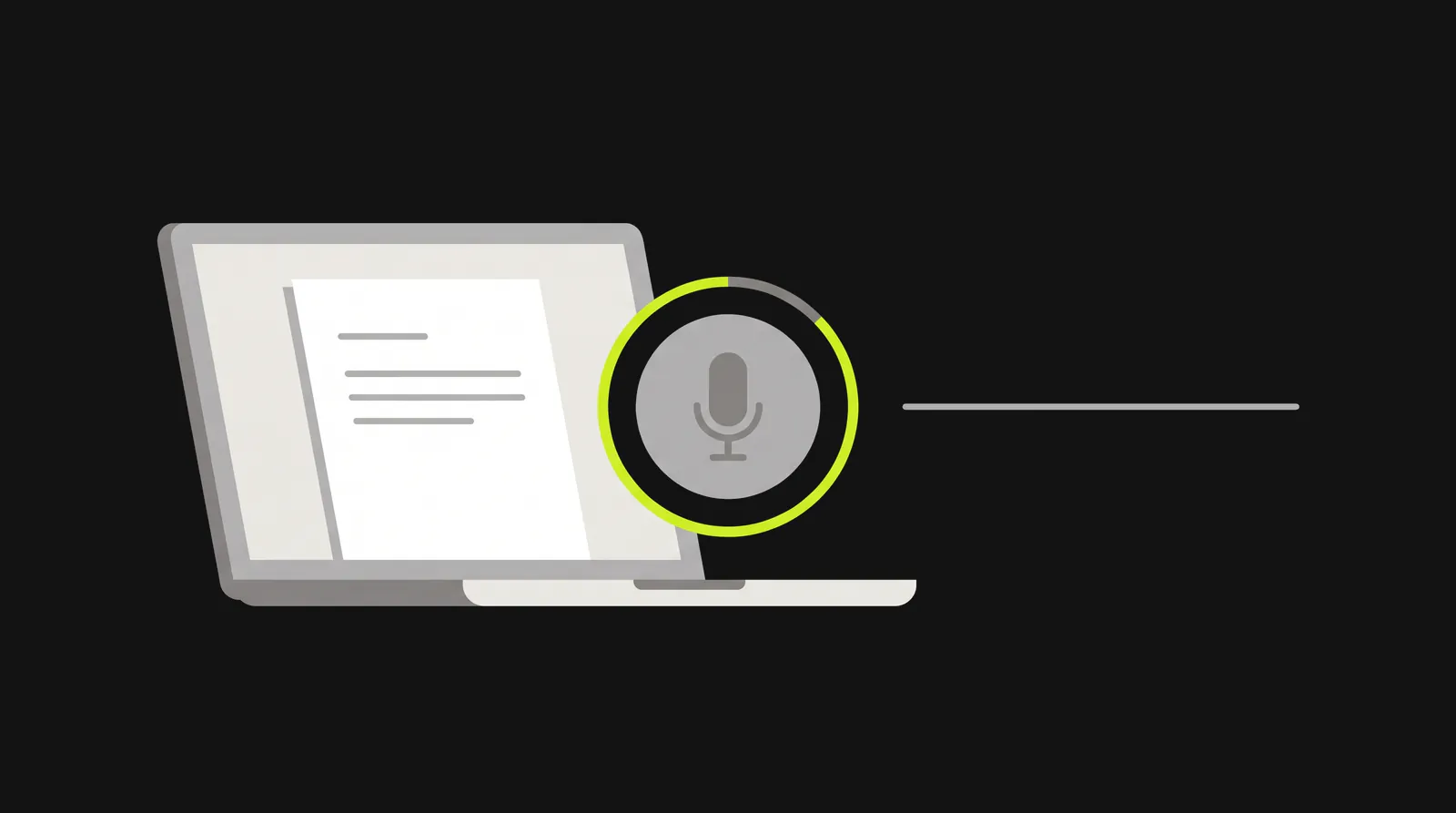
Users report voice typing switching itself off after 10 to 20 seconds of silence, and there's no setting to make it wait longer.
Voice typing in Google Docs on a phone or tablet
Google's voice typing steps are written for a computer, and its help page has none for the Docs phone app. On a phone you dictate through your keyboard instead, which types into the Docs app the same way it types into any other app.
On Android, Gboard's help page Type with your voice gives the steps: open the document, tap where you want to type, then tap the microphone at the top of the keyboard and speak when you see "Speak now". On a Pixel 6 or later, Gboard's advanced voice typing adds punctuation as you speak and takes commands such as "Delete last word" and "Clear". Our guide to voice to text on Android covers other phones and keyboards. Dictation Daddy's Android app also installs as a keyboard, so it types into the Docs app the same way.
On iPhone and iPad, Apple's Dictate text on iPhone says to go to Settings, then General, then Keyboard, and turn on Enable Dictation. Then tap where you want to type in the document and tap the microphone on the keyboard. Apple says Dictation inserts commas, periods and question marks automatically in supported languages, and runs on the iPhone in many languages without an internet connection.
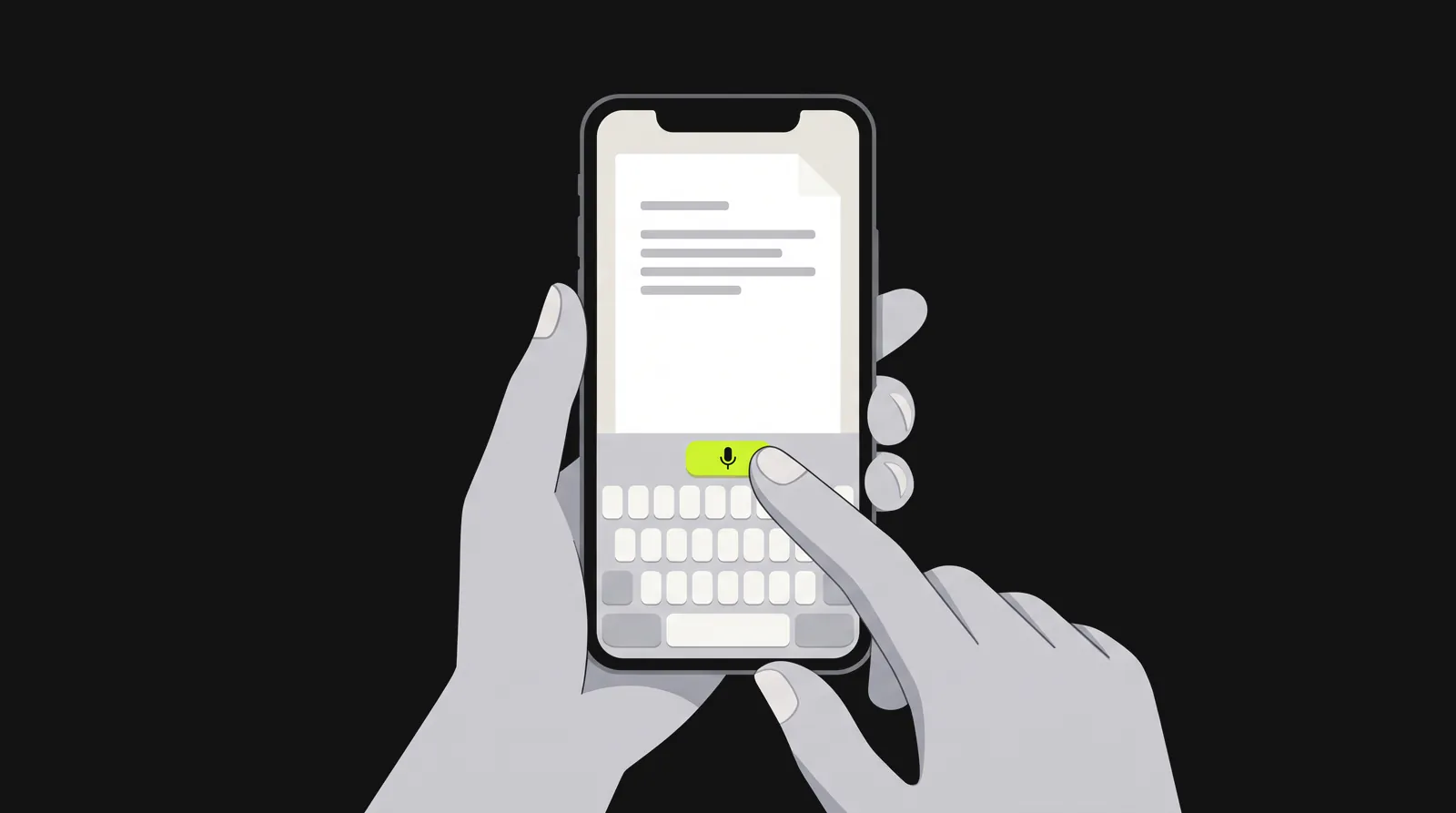
On a phone, you dictate with the microphone on your keyboard, which types into the Docs app like any other app.
These keyboards have their own commands, so the Docs command list above doesn't apply on a phone. The Docs Android app does have a voice button called Create with voice, but that's something else: Gemini writes a draft from your spoken description, it needs an eligible Google Workspace or Google AI plan, and Google says it's "available on mobile (Android and iOS) and in English only" (Google's help page). It doesn't type your words as you say them.
When Google Docs voice typing isn't working
| What you see | Likely cause | What to do |
|---|---|---|
| No Voice typing option under Tools | A browser Google doesn't list, or the Docs phone app | Open the document in Chrome, Edge or Safari on a computer, or use the keyboard microphone on a phone |
| Your typing only adds comments or suggestions, or nothing at all | You only have Commenter or Viewer access | Google says commenters can add comments and suggestions but "can't change the file's content", and viewers can't change it at all. Ask the owner for Editor access |
| No Voice typing option on a work or school account | Your administrator turned it off | Google says "it may have been turned off by your administrator". Ask them |
| No Voice typing option in an encrypted file | Client-side encryption | Google lists voice typing among the tools you can't use in encrypted files |
| No Voice typing option and a ".docx" label by the file name | You're editing a Word file | A Google Product Expert said in a 2020 forum answer that voice typing isn't available for Word files. Converting it to Google Docs format makes a copy you can dictate into, per Google's Office files help |
| The microphone turns on but nothing types | The browser or the computer is blocking the microphone, or Chrome is using the wrong one | In Chrome, go to Settings, Privacy and security, Site settings, Microphone: allow docs.google.com and check which microphone is the default. Then allow your browser in the computer's settings (Mac: System Settings, Privacy & Security, Microphone; Windows 11: Settings, Privacy & security, Microphone) |
| It worked before and now it can't hear you | Chrome removed the permission, or you chose Allow this time | Chrome's site settings help says it "removes permissions from sites you haven't used recently", and Allow this time lasts only for the current visit. When Chrome asks again, choose Allow, or allow the microphone for docs.google.com in Site settings |
| "We're having trouble hearing you" | Too much noise or too little input | Google suggests a quieter room, an external microphone, and turning up the microphone's input volume |
| Still nothing | The microphone itself, or another app holding it | Google suggests checking the microphone isn't broken, is plugged in, "is not being used by another application", then restarting the computer |
| Punctuation words typed as words | A pause before the word | Say the punctuation word straight after the last word of the sentence |
| Commands typed as text | Account or document language isn't English, or no pause | Set both to English, pause before and after the command, and say "Undo" to reverse a mistake |
| It switches itself off | Silence, or you left the tab | See the section above. Click the microphone to restart it |
To check the microphone on its own, outside Google Docs, our free mic test shows your live input level and lets you record 5 seconds and play it back.
Who Google Docs voice typing is enough for
For a school assignment, a page of notes or a first draft you'll edit anyway, it costs nothing and does the job. It starts to fall short when you dictate every day, in more than one app, or in a language other than English, because of 3 limits the sections above don't cover:
- It only types into Docs (and Slides speaker notes). Gmail, Word and every other app need a different tool. Word has its own Dictate button, covered in our guide to dictating in Word.
- Plan on needing an internet connection. Google says the browser does the speech-to-text, and Mozilla's developer docs say that in Chrome, speech recognition on a web page "involves a server-based recognition engine. Your audio is sent to a web service for recognition processing, so it won't work offline."
- You can't teach it words. "Voice typing in Docs doesn't currently have a way to teach it to recognize new words," a Product Expert wrote in 2020 (thread), and Google's help page still describes none. Adding a word to Docs' personal dictionary at least stops it being flagged as misspelled, but names and technical terms stay a problem.
If you only need a free option, our roundup of free speech to text apps covers the one built into each device.
Where Dictation Daddy fits
Dictation Daddy is a dictation app for people who've outgrown those limits. It types wherever your cursor is, so the same voice typing works in Google Docs, Gmail, Word and any other app, and it adds punctuation, capitalization and paragraph breaks from the way you speak. You don't say "comma" or "new paragraph", so the pause rule above stops mattering.
It works in Google Docs 2 ways:
- The Chrome extension types straight into the page, Google Docs included, with no copying and pasting.
- The desktop app for Mac and Windows types into Google Docs in any browser, plus every other app on your computer.
It reaches 98 to 99 percent accuracy from your first sentence, with no training period. Technical terms work from day one, and you can add your own names and terms to its custom vocabulary. It handles more than 30 languages (the full list is on our languages page). It runs on Mac, Windows, Android (as a keyboard) and as a Chrome extension. The iPhone app is coming soon.
The tradeoff is that Dictation Daddy uses cloud processing, so it needs an internet connection and your audio leaves your device. Chrome's own speech recognition on web pages works the same way, per Mozilla's note above.
Full disclosure, you are reading this on the Dictation Daddy website, so we are a little biased. But our users back it up, and you can see what real users are saying. Your first 100 dictations are free with no credit card required: download Dictation Daddy and try it in your next Google Doc.
Dictate speaker notes in Google Slides
Google Slides has voice typing for speaker notes only. Google's steps:
- On your computer, open a presentation in Google Slides in a browser.
- Click Tools, then Dictate speaker notes. The speaker notes open with a microphone box.
- Click the microphone, speak, and click it again when you're done.
Voice commands don't work in Slides speaker notes, Google says. Its Slides steps point to the same spoken punctuation words.
Bottom line
For Google Docs voice typing, open the document in Chrome, Edge or Safari on a computer, click Tools, then Voice typing, and say your punctuation without pausing before it. Keep the account and document in English if you want voice commands, and use your keyboard's microphone on a phone. If you dictate every day, across more apps than Docs, a system-wide tool like Dictation Daddy does the punctuation for you. Check the testimonials and try it on your next document.
FAQ
How do I turn on voice typing in Google Docs?
Open the document in Chrome, Edge or Safari on a computer, click Tools, then Voice typing, and click the microphone that appears. Allow the microphone when your browser asks. Click the microphone again to stop.
What is the shortcut for voice typing in Google Docs?
Ctrl+Shift+S on Windows and ChromeOS, or ⌘+Shift+S on a Mac. Google's shortcut list labels it "available in Chrome browsers", so use the Tools menu in other browsers.
Is Google Docs voice typing free?
Google says anyone with a Google Account can create in Docs, and its voice typing help page names no paid plan or add-on for the feature. You need a supported browser and a microphone.
Why can't I find voice typing in Google Docs?
The usual reasons are a browser Google doesn't list (such as Firefox), the Docs phone app, a work or school account whose administrator turned it off, or an encrypted file. Open the document in Chrome on a computer first.
Does Google Docs voice typing work in Firefox or Brave?
Not according to Google, whose help page lists Chrome, Edge and Safari. Firefox was on the list from January 2023 to May 2024. Mozilla's compatibility data shows Firefox 160, due for release on 10 November 2026, adding browser speech recognition. Mozilla's Firefox 160 release notes say it's on-device recognition only, on desktop, in 40 languages, with no cloud recognition, and Google hadn't added Firefox back to its list when we checked that day. In Brave on a computer, users report the microphone turning on with nothing typed, and Brave's staff have said its desktop browser lacks the speech service.
Does Google Docs voice typing work offline?
Plan on needing a connection. Google says the browser does the speech-to-text, and Mozilla's developer docs say Chrome's speech recognition on web pages runs on a server, so it "won't work offline". Google's page doesn't say which mode Docs uses.
Why does Google Docs voice typing keep stopping?
Users report it switching off after 10 to 20 seconds of silence and when they leave the tab or window. Google's help page doesn't mention a time limit, and a Google Product Expert has said there's no setting to change it. Click the microphone to restart.
Can I use voice typing in Google Docs on my phone?
Google's voice typing steps are for a computer. On a phone, use the microphone on your keyboard: Gboard on Android, or Dictation on iPhone, which you turn on in Settings, General, Keyboard.
How do I add punctuation with Google Docs voice typing?
Say it: "period", "comma", "question mark", "exclamation point", "new line" or "new paragraph". Say the word straight after the last word, without a pause, or Docs may type it as a word.
Can Google Docs voice typing transcribe a recording?
Only by listening to it. Google's News Initiative lesson suggests holding a recording close to the computer's microphone and playing it, or listening on headphones and repeating it aloud if the audio isn't clear. Google's voice typing page describes no way to upload an audio file.
Does voice typing work in languages other than English?
Yes. Google lists 119 languages and accents. Voice commands such as "select paragraph" or "bold" work only when both your account and the document are set to English.
Can I dictate speaker notes in Google Slides?
Yes. Click Tools, then Dictate speaker notes, and click the microphone. Voice commands don't work in speaker notes.
Ready to try it?
Turn your voice into polished text
Free for your first 100 dictations. Works in every app. No credit card required.