
Why Is My Voice to Text Not Working? Fixes by Phone and PC
Voice to text usually stops working because a setting or an update hid the microphone button, the keyboard needs a restart or a reset, the microphone isn't hearing you, or the service behind it is down. What you see on the screen tells you which one you have, and the table below matches each symptom to its first fix.
On a Samsung Galaxy, check one thing before anything else. Since a 2024 software update, the voice key often isn't on the keyboard any more. It's a small button at the bottom left of the screen, below the keyboard, and you may need to switch it on. It was the most common single fix in the solved cases we counted.
If the microphone button is there but nothing gets typed, do a 10-second test: record yourself with Voice Memos on an iPhone or a recorder app on Android, then play it back. If you hear yourself clearly, the microphone works and the problem is a setting. If the recording is silent too, go to the microphone section first.
The settings and menu paths on this page come from Apple's, Google's, Samsung's and Microsoft's own help pages, checked in November 2026. Jump to your device: Samsung, iPhone, Android with Gboard, Windows, Mac.
Find your fix by what you see
| What you see | Usual cause | Try this first |
|---|---|---|
| No microphone button on a Samsung keyboard | The voice key moved to the bottom left of the screen. That was the fix in 14 of the 75 solved cases we counted | Turn on Keyboard button on navigation bar, then touch and hold that button |
| No microphone button on an iPhone, or a red sound-wave button where it used to be | Dictation is off, blocked in Screen Time, or another keyboard is active | Turn on Enable Dictation, tap the globe key to get back to Apple's keyboard, check Screen Time |
| No microphone button in Gboard | Voice typing is off in Gboard, or Gboard is no longer your keyboard | Turn on Voice typing in Gboard's settings and switch back to Gboard |
| A permission error, such as "No permission to enable voice typing" | The keyboard isn't allowed to use the microphone | Give the keyboard microphone access |
| You tap the microphone but nothing gets typed | The microphone, a connected headset or car, a stuck keyboard, or an outage | Do the recording test, disconnect Bluetooth, then restart |
| It works at home but not with AirPods in or in the car | The iPhone may be listening to the headset's or the car's microphone | Disconnect the headset or car, then turn Dictation off, restart and turn it back on |
| It stops on its own after a few seconds | On iPhone, only a 30-second pause ends dictation by design. None of the early cut-offs we counted was the designed stop | Restart and update, and if a headset or car is connected, try without it. If it started for everyone at once, wait for the maker's fix |
| It types the wrong words | The wrong language, background noise, or the voice engine itself | Check the language. On Samsung, try Google Voice Typing |
| Edit commands like "delete that" get typed as words on iPhone | Edit commands only work with U.S. English, on iPhone 12 and later | Switch to the English (US) keyboard when you dictate |
What fixed it for 75 people
Help pages list every possible cause, so we checked which ones actually turn up. We screened more than 1,300 threads in Apple's, Google's, Samsung's and Microsoft's own support communities, plus Reddit, read the ones that had a sign of a solution, coded 97 of them, and kept the 75 where voice typing had stopped working and someone confirmed the fix (in 2, only tentatively). In 50 of them it was the person with the problem. 55 of the 75 are from 2024 onward, the newest from November 2026.
| What fixed it | All 75 threads | Confirmed by the person with the problem (50) |
|---|---|---|
| The microphone key had moved, or a setting hid it | 17 | 11 |
| A reset, reinstall, app update or restart | 15 | 12 |
| Switching to Google Voice Typing or Gboard | 10 | 5 |
| A bug on the maker's side, fixed by the maker or its next update | 10 | 6 |
| Microphone hardware or a driver | 7 | 4 |
| A language setting | 5 | 4 |
| Permission, privacy or a work policy | 4 | 2 |
| Another voice setting | 3 | 3 |
| Something else | 4 | 3 |
Three things stand out. 14 of the 17 "moved or hidden" cases are the same Samsung change. Microphone permission, the fix most guides lead with, solved exactly 1 of the 75. And in 8 cases nothing the person did made a difference: Microsoft's or Google's service was broken, and it came back when they fixed it. In 2 more, an Apple bug went away with the next iOS or iPadOS update. No thread was solved by fixing an internet connection, although on Windows the outages showed up as internet errors.
Read the counts for what they are. They come only from threads that got an answer someone confirmed, so they show what fixed it for people who asked in public and came back, not how common each cause is. The platform mix follows the forums: Samsung's community marks solutions, while the Apple threads we read showed no marked solutions, only vote-ranked replies, so Samsung is 36 of the 75 and iPhone 14. That doesn't mean Samsung phones break more.
First, check the microphone itself
Voice typing can't type what the microphone doesn't hear, so if a plain recording fails too, the fault sits below the keyboard. On Android 12 and later, first check the phone-wide microphone switch: swipe down twice from the top of the screen and make sure the microphone tile isn't blocking access, because it silences recordings as well. Otherwise it's the microphone. Hardware or a driver was behind 7 of the 75 cases.
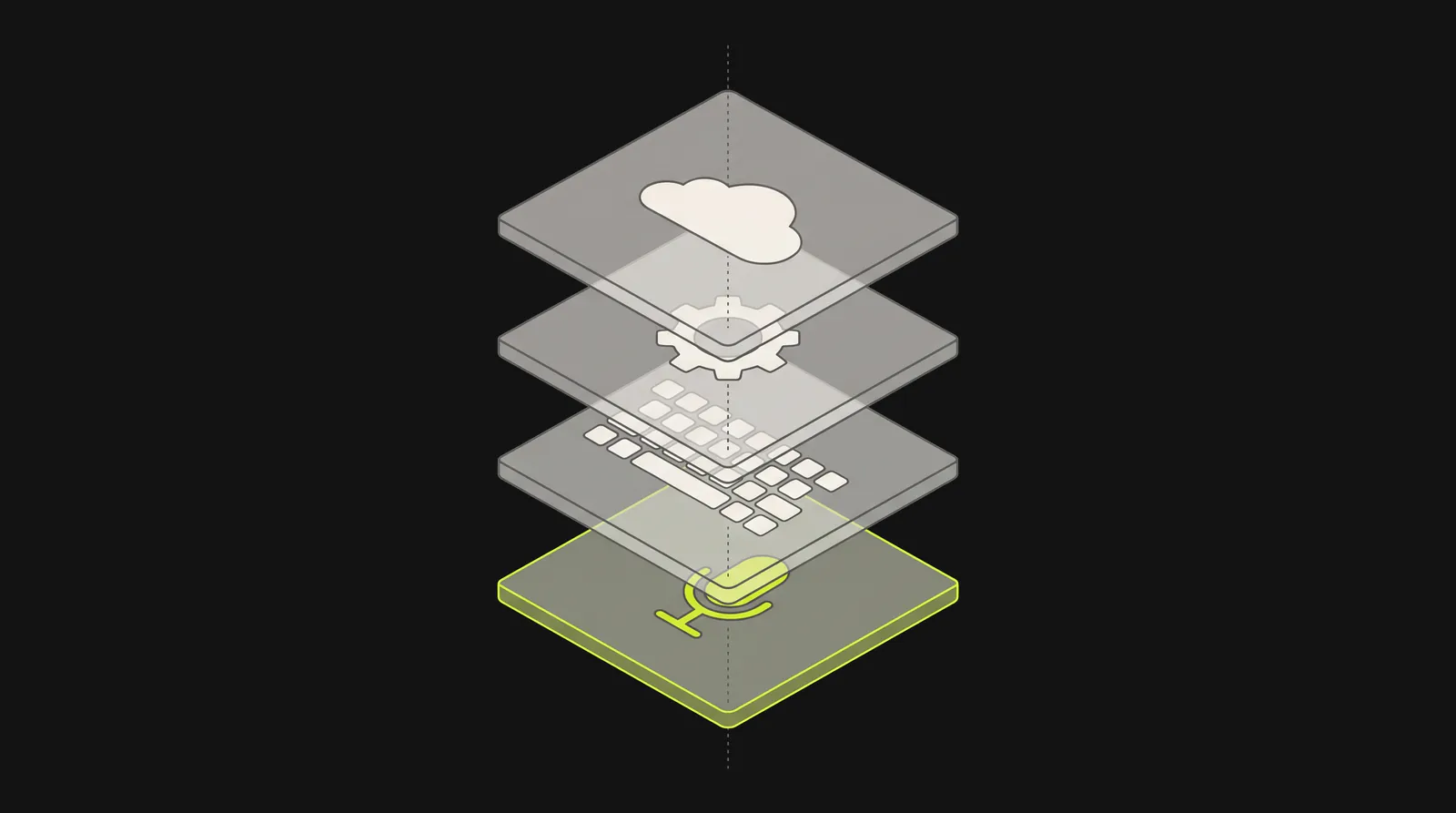
Voice typing can't type what the microphone doesn't hear, so test the microphone first with a plain recording.
On an iPhone, open Voice Memos (it's in the Utilities folder), tap record, speak, stop and play it back. If you sound muffled or can't hear yourself, Apple's microphone troubleshooting page says to remove any screen protector, film or case and clear debris from the openings.
On an Android phone, use any voice recorder. On a Pixel that's the Recorder app. Google's Pixel microphone help also suggests turning off Bluetooth, removing the case or screen protector, and cleaning the microphone openings with a soft, lint-free cloth.
On Windows, go to Settings > System > Sound, choose your microphone under Input and select Start test, then play back the sample. Microsoft's microphone guide walks through it, including reinstalling the driver.
On any device with a browser, our free mic test shows in a few seconds whether your microphone picks you up and how strong the signal is.
If a recording is still silent after that, Apple and Google both point to getting the device checked. If it sounds fine, carry on with your device below.
Fix voice input on a Samsung Galaxy
Samsung phones come with 2 voice-to-text engines: Samsung voice input, which only works with the Samsung Keyboard, and Google Voice Typing (Samsung's keyboard guide).
1. Find the microphone: it probably moved
Starting with Samsung's One UI 6.1 update in early 2024, owners of the Galaxy S23, S24, S25, A-series, Fold and Flip asked where the microphone had gone from their keyboard. In the 14 threads we counted, on Samsung's community and Google's, the answer was the same each time: it's now a small button at the bottom left of the screen, in the navigation bar below the keyboard. This S23 Ultra thread is a typical one. The same question was still coming up after updates in September 2025.
To switch it on, go to Settings > General management > Keyboard list and default and turn on Keyboard button on navigation bar. Then open any app and tap a text field. With the keyboard open, a small microphone or keyboard icon appears at the bottom left of the screen. If it's a microphone, tap it to dictate. If it's a keyboard icon, touch and hold it and choose voice input.
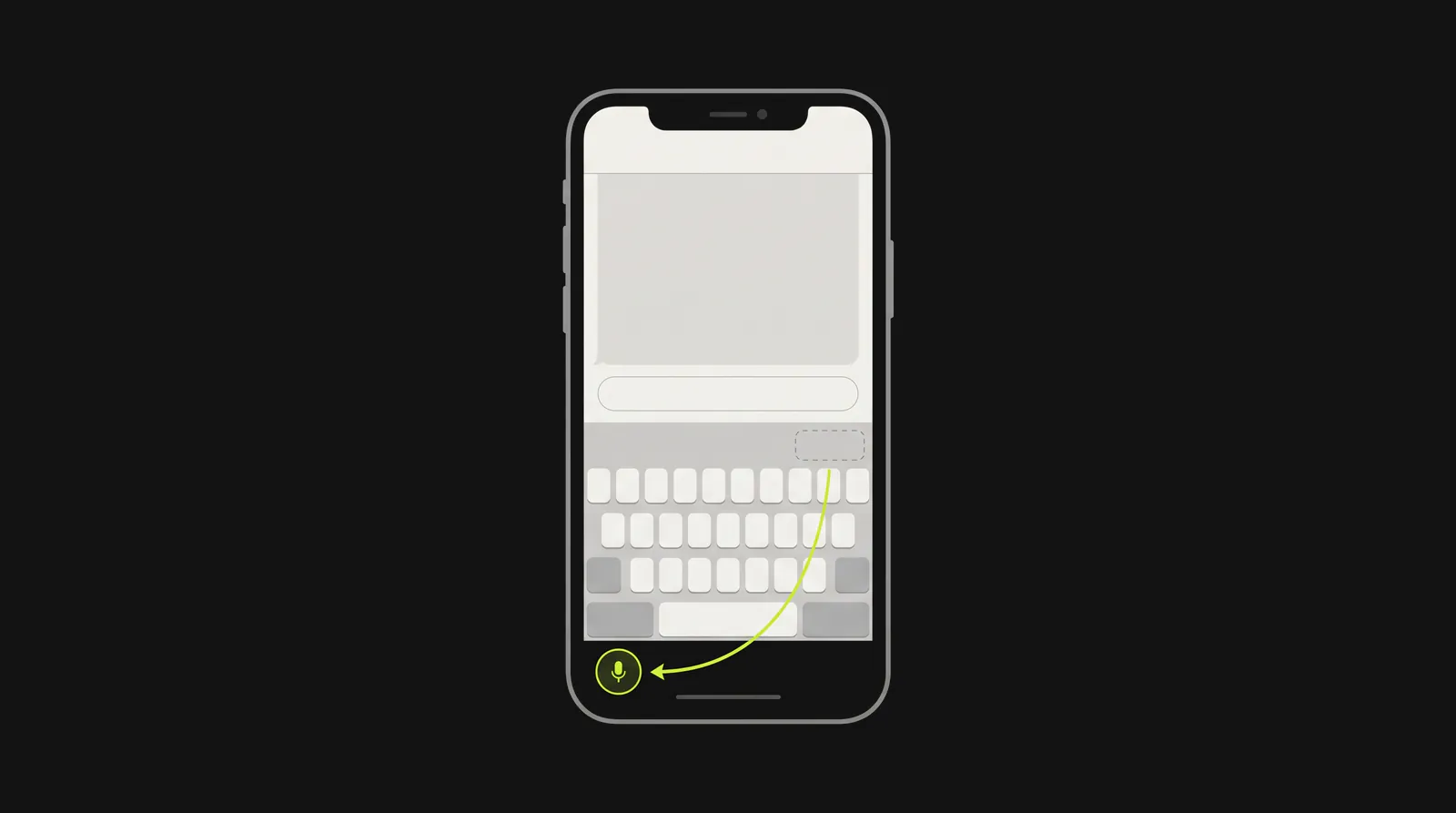
On many Samsung phones since One UI 6.1, the voice key sits at the bottom left of the screen, below the keyboard, not on the keyboard.
Answers in Samsung's community also give a second route: in Samsung Keyboard settings, under Swipe, touch and feedback, set Touch and hold space bar to Voice input. Then you hold the space bar to dictate.
2. Pick a voice engine, and try the other one
Go to Settings > General management > Samsung Keyboard settings > Voice input and make sure one is selected: Samsung voice input or Google Voice Typing. If you use Google Voice Typing, check that its switch is on under Keyboard list and default.
If it works but gets your words or spoken punctuation wrong, switch engines. In 7 of the Samsung threads, people unhappy with accuracy, British spellings or "period" being typed as a word were pointed to Google Voice Typing or Gboard, and 10 Samsung threads in all ended with a switch.
3. Reset the keyboard, gently first
In Settings, search for Samsung Keyboard, swipe to the bottom and tap Reset to default settings. Start with Clear cache. If that doesn't help, choose Reset keyboard settings, which puts the keyboard's settings back to their defaults and keeps your downloaded languages.
4. Offline and first use
To dictate without a connection, open the Samsung voice input settings and switch on your language in the Offline voice input section, or tap Install offline language pack. The first time you use Samsung voice input, you may need to agree to its terms or allow some permissions.
If you use Gboard as your keyboard on the Samsung, the Gboard steps below apply instead.
Fix voice to text on iPhone
Paths are for iOS 27. We counted fewer iPhone cases than Samsung ones, so the order below follows the symptom.
If the microphone button is missing
Turn Dictation on. Go to Settings > General > Keyboard and turn on Enable Dictation. If a prompt appears, tap Enable Dictation. This is the fix in Apple's iPhone User Guide when the microphone button is missing from the keyboard.
If you see a red sound-wave button in Messages where the microphone used to be, start here. In one Apple community thread, turning Enable Dictation on brought the microphone back. In another, the Enable Dictation switch itself had disappeared, and Reset All Settings (Settings > General > Transfer or Reset iPhone > Reset) restored it.
Switch back to Apple's keyboard. The dictation button belongs to Apple's keyboard. If you've installed another keyboard, such as Gboard or Grammarly, and it's the one on screen, the button isn't there. Tap the globe key to switch back. In one confirmed case on an iPad, a Grammarly keyboard was the whole problem. Gboard on iPhone has its own microphone button: Google's iPhone voice typing help says to tap Microphone and speak when you see "Speak now".
Check Screen Time and work restrictions. Screen Time can block dictation. Many guides still give the old path, Allowed Apps > Siri & Dictation, which isn't where it is now. Apple's Siri, Dictation and Privacy page gives the current one: Settings > Screen Time > Content & Privacy Restrictions > Other Features > Dictation. Make sure it isn't blocked. A work or school iPhone can also have dictation switched off: Apple's device management guide lists a restriction that stops users dictating at all, and only your IT team can change it.
If the button is there but nothing types, or it cuts off
Disconnect AirPods, Bluetooth headphones or the car. AirPods and other headsets have their own microphones. Apple's AirPods settings page says that if Microphone is set to Always Left or Always Right, that AirPod keeps acting as the microphone even after you take it out of your ear or put it in the case. Set it back to Automatically Switch AirPods (Settings > your AirPods > Microphone), or disconnect them. In a long-running Reddit thread on this problem, people report dictation failing with AirPods connected, one even with the AirPods in their case, and others only when connected to the car.
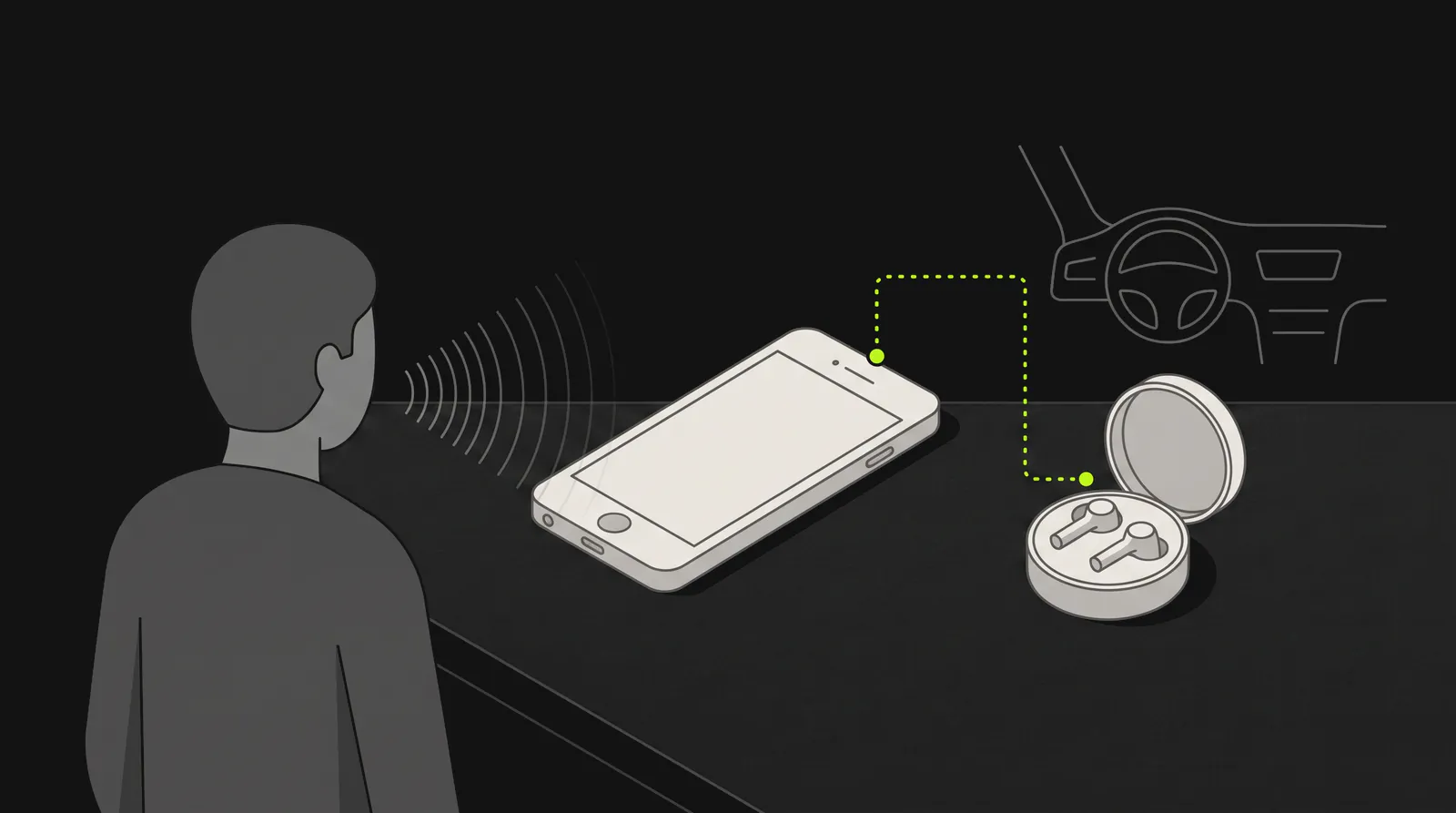
With AirPods, a headset or the car connected, the iPhone may be listening to their microphone instead of its own.
Turn Dictation off, restart, turn it back on. Apple Support gave this fix to someone whose dictation failed only in the car, and it worked: turn Enable Dictation off, turn the iPhone off and on again, then turn Enable Dictation back on.
Install any waiting update in Settings > General > Software Update. Some of the iPhone and iPad cases we counted were bugs that the next update fixed.
Try switching your region language and back. This one comes from users, not Apple. In the same Reddit thread, an answer with a run of "worked for me" replies was to go to Settings > General > Language & Region, change to English (UK), then change back to English (US).
Check whether your language needs a connection. Apple says dictation is processed on the iPhone in many languages with no internet connection required. Not in all of them, though. Apple's feature availability page lists 63 dictation languages and regions, and 14 of them are missing from its on-device dictation list: Hindi, Polish, Greek, Ukrainian, Czech, Hungarian, Romanian, Slovak, Croatian, Catalan, Indonesian, Portuguese (Portugal), Mandarin (Taiwan) and Shanghainese. According to Apple's privacy page, Keyboard settings show whether what you say is processed on the device. If it isn't, your speech is sent to Apple, so dictation needs a working connection, and Apple notes that cellular data charges may apply.
Know that 30 seconds of silence ends it. Dictation stops by itself when you stay quiet for 30 seconds. That's how Apple designed it, not a fault. A stop after a few seconds while you're still talking isn't the designed stop, so work through the steps above.
If it types the wrong words or commands
Check which keyboard language you're on. iPhone dictation listens in the language of the keyboard you're typing with. Apple puts it this way: when you use a keyboard for another language, you can use Dictation in that language as well. If you tapped the globe key and switched keyboards, dictation switched language with it.
Use the U.S. English keyboard for edit commands. Apple's list of dictation commands says commands to edit text, like "delete" or "undo", are available in U.S. English on iPhone 12 and later, except iPhone SE. With a UK English keyboard, the command words get typed instead, which is exactly what this Apple community thread traced it to.
Fix voice typing on Android (Gboard)
These steps are for Gboard, Google's keyboard. If you've never set voice typing up, our guide to turning on voice typing on Android starts from the beginning.
1. Turn voice typing on in Gboard
Tap in any text field to open Gboard, tap Settings at the top of the keyboard, then Voice typing, and turn on Voice typing.
2. Give Gboard microphone access
Open Settings > Apps (or App management) > Gboard > Permissions > Microphone, and select Allow only while using the app. It's the first fix under Voice input problems in Google's Fix problems with Gboard page, which most of the steps here come from. If you're seeing the error "No permission to enable voice typing", this is the setting. It's the fix the person with that error confirmed in Google's Pixel help community, and the only one of our 75 cases that a permission change solved.
3. Check the phone's own microphone switch
On Android 12 and later, a microphone switch blocks every app at once. Swipe down twice from the top of the screen and check the microphone tile in Quick Settings (Google's camera and mic controls help). You can also go to Settings > Security & privacy > Privacy > Privacy controls and make sure Microphone access is on (Google's app permissions page).
4. Get Gboard back if your keyboard changed
Google notes that Gboard can disappear from your keyboard list when it updates. To switch back, touch and hold the globe key and tap Gboard. If Gboard isn't offered, go to Settings > System > Keyboard > On-screen keyboard and turn it on.
5. Check the language
Google's voice typing help says talk-to-text doesn't work in every language. On a Pixel 6 or newer with advanced voice typing, your main Gboard language and your phone's language must be the same. Touch and hold the globe key to choose the language you're speaking.
6. Clear Gboard's cache
Go to Settings > Apps > Gboard > Storage (or Storage and cache) and tap Clear cache. If that doesn't help, Clear data resets Gboard to its default state, so you'll lose its settings. If the trouble started right after a Gboard update, Google suggests Uninstall updates from the same Gboard screen (tap More in the top corner).
7. On a new Pixel, give it a few hours
Google says a new Pixel can take a few hours to download what voice typing needs. Connect to Wi-Fi, restart and leave it charging overnight. On a Pixel 6 or newer, Google's advanced voice typing page says the text you speak stays on your device.
Fix voice typing on Windows
Microsoft's voice typing guide says voice typing needs 3 things: an internet connection, a working microphone and your cursor in a text box. Press Windows key + H to start it, on Windows 11 or Windows 10. The paths below are Windows 11's, and some sit in different places on Windows 10.
If you see an error message
Microsoft's voice typing troubleshooting page lists 2 error messages and their fixes. The third comes up in Microsoft's community.
| Error message | Fix |
|---|---|
| "Voice typing needs access to your microphone. You'll need to turn this on in settings to use speech to text." | Go to Start > Settings > Privacy & security > Microphone and turn on Microphone access |
| "Voice typing isn't available in the current language." | Install one of the languages voice typing supports (the voice typing guide lists them) and switch to it |
| Speech services "are managed by your organization" | See "On a work or school PC" below |
If nothing appears when you speak
- Click into a text box first. Voice typing only starts with the cursor in one.
- Check that the right microphone is selected under Settings > System > Sound > Input, and raise its input level.
- Make sure Online speech recognition is on, under Settings > Privacy & security > Speech. Microsoft's speech privacy page says voice typing runs on online speech recognition, and with that switch off only device-based features like Narrator work.
- Try a headset or external microphone if you're using a laptop's built-in one.
- If voice typing stopped right after a Windows update, reinstall the microphone driver. In one case we counted, an update had removed the microphone drivers from 2 laptops.
If it says you're offline when you aren't
Microsoft's own service has failed before. In August and September 2022, Windows voice typing showed errors such as "You'll need the Internet for this" to people who were online, and it came back when Microsoft fixed it on its side, as this Microsoft Q&A thread shows. If your connection is fine and the error started suddenly, see "When it's broken for everyone" below.
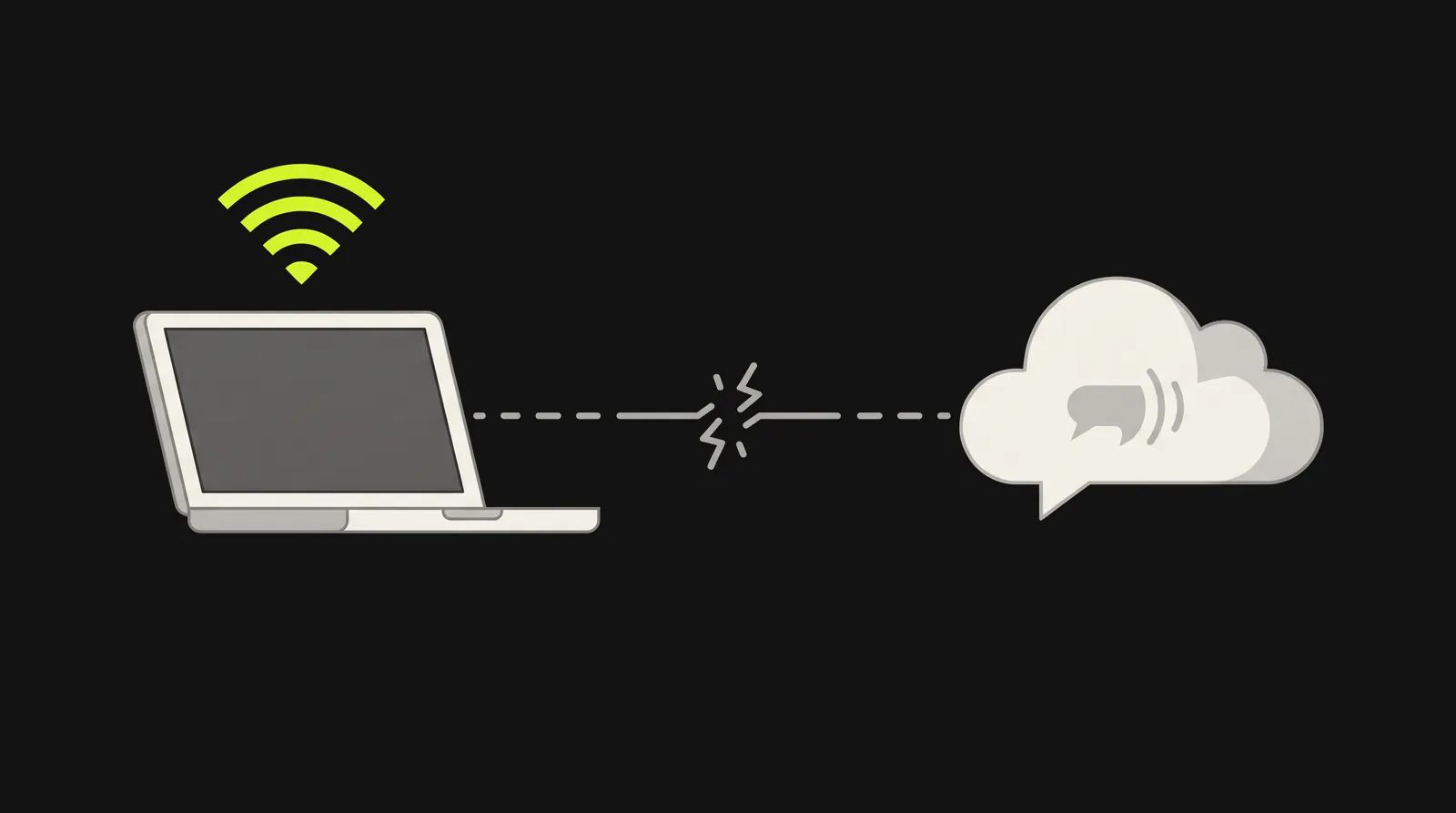
Windows voice typing has told people they were offline when the fault was Microsoft's speech service, not their connection.
On a work or school PC
If you can't turn on Online speech recognition, or Windows says speech services are managed by your organization, your organization has probably switched them off. Microsoft's policy documentation says that when an administrator disables the setting "Allow users to enable online speech recognition services", speech services are disabled and users can't turn them back on in Settings. Only your IT team can change that on a managed PC.
On your own PC, the same message can appear without anyone managing it. The fix posted as the solution in Microsoft's community is that one named setting. On Windows Pro, in the Local Group Policy Editor, go to Computer Configuration > Administrative Templates > Control Panel > Regional and Language Options, set "Allow users to enable online speech recognition services" to Not configured, and restart. Skip any advice to delete every policy key in the registry. One accepted answer suggests it, and it deletes every policy setting on the PC, not just this one.
If you need it to work offline
Windows voice typing needs a connection. On Windows 11 version 22H2 and later, Voice Access can type by voice without an internet connection once it has downloaded its language files, in the languages it supports. Our guide to speech to text on Windows covers Voice Access and the other options.
When it's broken for everyone
The most recent case we found: in early April 2026, Gboard voice typing started cutting off after a few seconds for people in several languages, including Hungarian, Latvian and Greek, on Samsung and Xiaomi phones among others. It came back around April 10 with no action from users, according to two confirmed threads in Google's Android community (one, two). The Windows outages of 2022 above followed the same pattern.
If voice typing broke suddenly on a device you didn't change, look for posts from the last few days about the same symptom: the Gboard Help Community and Android Help Community for Gboard, Samsung's community for Samsung Keyboard, Apple Support Community for iPhone dictation, and Microsoft Q&A for Windows. Search with the exact error message if there is one. If others are reporting it, update the keyboard app and wait.
On a Mac
Mac dictation has its own settings, shortcut and microphone menu, so it gets its own guide: dictation not working on Mac.
It works, but types the wrong words
Check the language setting first: the keyboard language on iPhone, the Gboard language on Android, and Windows key + Spacebar on Windows. Pick the exact variant you speak, since English (United Kingdom) and English (United States) are separate options.
After that, Microsoft's advice for Windows is worth following on any device: move somewhere quieter, and if you're using a built-in microphone, try a headset or external one. On a Samsung, the confirmed fix for accuracy complaints was switching engines, as in step 2 of the Samsung section.
When the voice engine itself is the problem
If voice typing runs but still mishears names and specialist terms, or leaves you fixing every other sentence, no setting on this page will change it. The Samsung owners in our count found the other way out: most switched the voice engine to Google Voice Typing, and 3 moved to a different keyboard.
Dictation Daddy is one. On Android it installs as a keyboard, so you tap its microphone in any app the same way you'd tap Gboard's. It also runs on Mac, Windows and as a Chrome extension. The iPhone app is coming soon, so on an iPhone the built-in fixes above are your only route for now. It reaches 98 to 99 percent accuracy from your first sentence, and adds punctuation and paragraph breaks without voice commands. It's free to try, and you don't need a credit card, so you can test it on your own voice before you pay anything.
The trade-offs: it needs an internet connection, your audio leaves your device for processing, and like any keyboard it needs microphone permission, so it won't get round a blocked or broken microphone. Full disclosure, you are reading this on the Dictation Daddy website, so we are a little biased. Read what people who use it say.
Bottom line
Let the symptom pick the fix. A missing microphone button means a setting hid it: on a Samsung it has probably moved to the bottom left of the screen, and on an iPhone Dictation is off or another keyboard is active. A tap that types nothing points to the microphone, a connected headset or car, a keyboard that needs a restart, or an outage. Wrong words point to the language setting, the room or the voice engine. Do the 10-second recording test whenever the button is there but nothing works. If the built-in engine is what keeps letting you down, try Dictation Daddy free on Android, Mac, Windows or in Chrome.
FAQ
Why is my voice to text not working on my iPhone?
If the microphone button is missing, Dictation is off, blocked in Screen Time, or another keyboard is on screen. If the button is there but nothing types, disconnect AirPods or the car, then turn Enable Dictation off, restart the iPhone and turn it back on. Then check for an iOS update and record a voice memo to test the microphone.
How do I restore my voice to text?
Find out which part went missing. On a Samsung, turn on Keyboard button on navigation bar in Settings > General management > Keyboard list and default. On an iPhone, turn on Enable Dictation in Settings > General > Keyboard and tap the globe key to get back to Apple's keyboard. With Gboard, turn on Voice typing in Gboard's settings and give Gboard microphone access.
How do I enable my voice to text?
On an iPhone, go to Settings > General > Keyboard and turn on Enable Dictation. With Gboard on Android, open Gboard's settings, tap Voice typing and turn it on. On a Samsung, choose Samsung voice input or Google Voice Typing under Samsung Keyboard settings > Voice input. On Windows, click into a text box and press Windows key + H.
Why did the microphone disappear from my Samsung keyboard?
On many Galaxy phones, a 2024 update moved the voice key into the navigation bar at the bottom left of the screen. Go to Settings > General management > Keyboard list and default, turn on Keyboard button on navigation bar, then tap or touch and hold that button to dictate.
Why does my phone not have voice to text anymore?
The microphone button disappears when dictation or voice typing gets switched off, when the phone switches to a different keyboard, or after an update moves it. On Android, Google says Gboard can drop off the keyboard list after an update. Touch and hold the globe key to switch back, and check that Voice typing is on in Gboard's settings.
How do I fix "No permission to enable voice typing"?
Give the keyboard microphone access. For Gboard, go to Settings > Apps > Gboard > Permissions > Microphone and choose Allow only while using the app. That's the first fix Google lists for Gboard voice input problems, and it fixed the error for the person who asked about it in Google's Pixel help community.
Why does voice to text stop by itself?
On an iPhone, only a 30-second pause ends dictation by design. If it cuts off after a few seconds while you're still talking, check for a connected headset or car taking over the microphone, then restart and update. In the cases we counted, early cut-offs were faults that a restart, an update or a setting change fixed, or bugs on the maker's side, like the Gboard cut-offs of April 2026.
What if a voice memo can't hear me either?
Then the problem is the microphone, not voice typing. On Android, check the microphone tile in Quick Settings first. Then remove the case and any screen protector, clear the microphone openings, and disconnect Bluetooth headphones. If a recording still comes out silent, Apple and Google both point to getting the phone serviced.
Does voice to text work without internet?
iPhone dictation runs on the device in many languages, and Keyboard settings show whether yours is one of them. Samsung voice input works offline for any language switched on in its Offline voice input settings. Windows voice typing needs a connection, while Voice Access on Windows 11 works offline after setup. For Gboard, Google's help pages say your voice is sent to Google for transcription and don't document an offline mode, although a Google Product Expert describes downloading offline languages in the Google app, under Settings > Voice > Offline speech recognition. On a Pixel 6 or newer, advanced voice typing keeps the text on the device.
Ready to try it?
Turn your voice into polished text
Free for your first 100 dictations. Works in every app. No credit card required.